Personal routing lets you add extra filters to a route so it only applies to specific senders, phone numbers, or message content. This is useful when you need finer control over how traffic is distributed for a particular client.
Before You Start
Make sure you have already created at least one personal route for the client.
Configure Specific Settings
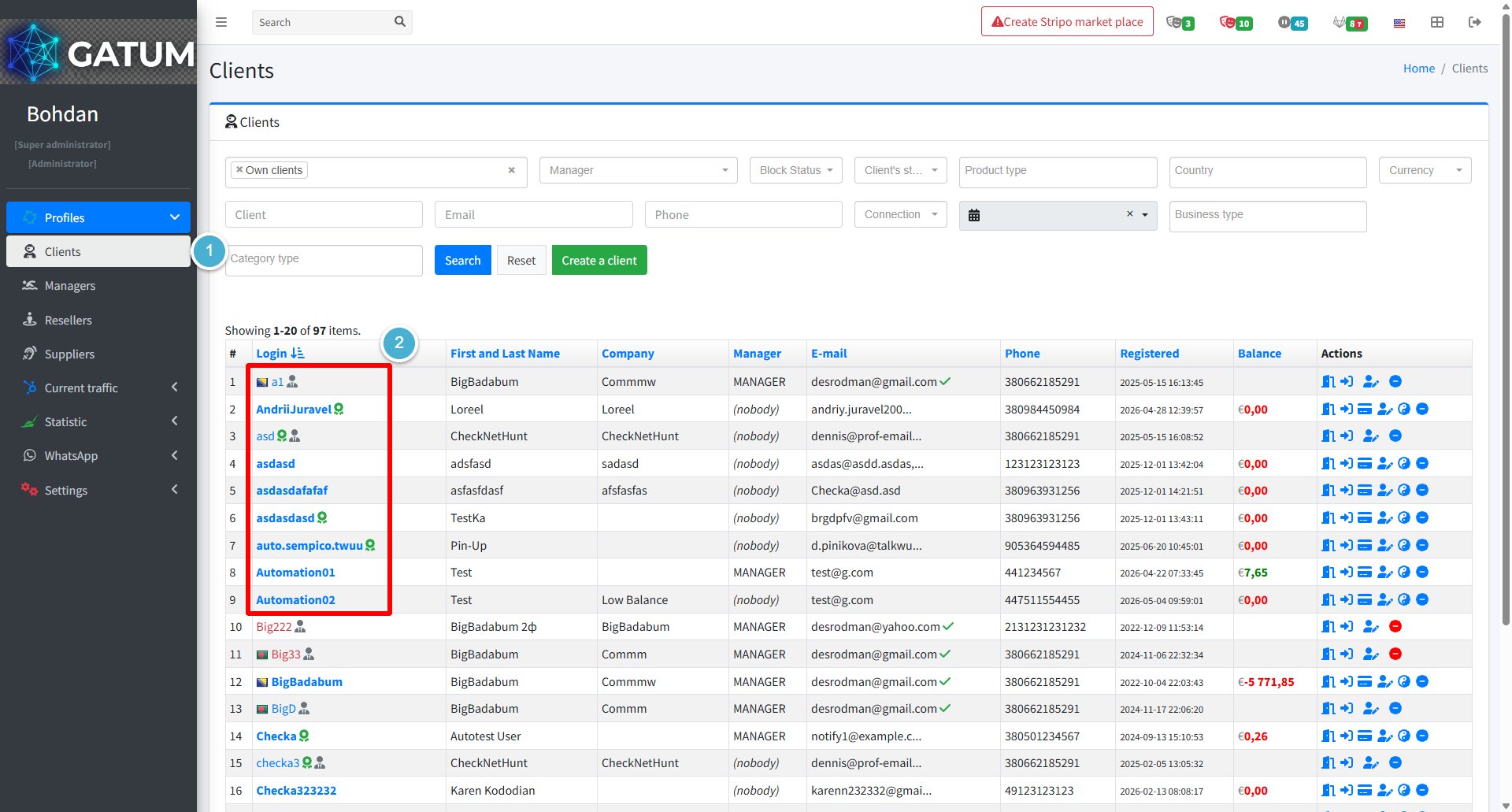
Go to Profiles → Clients.
Click on the client's name.
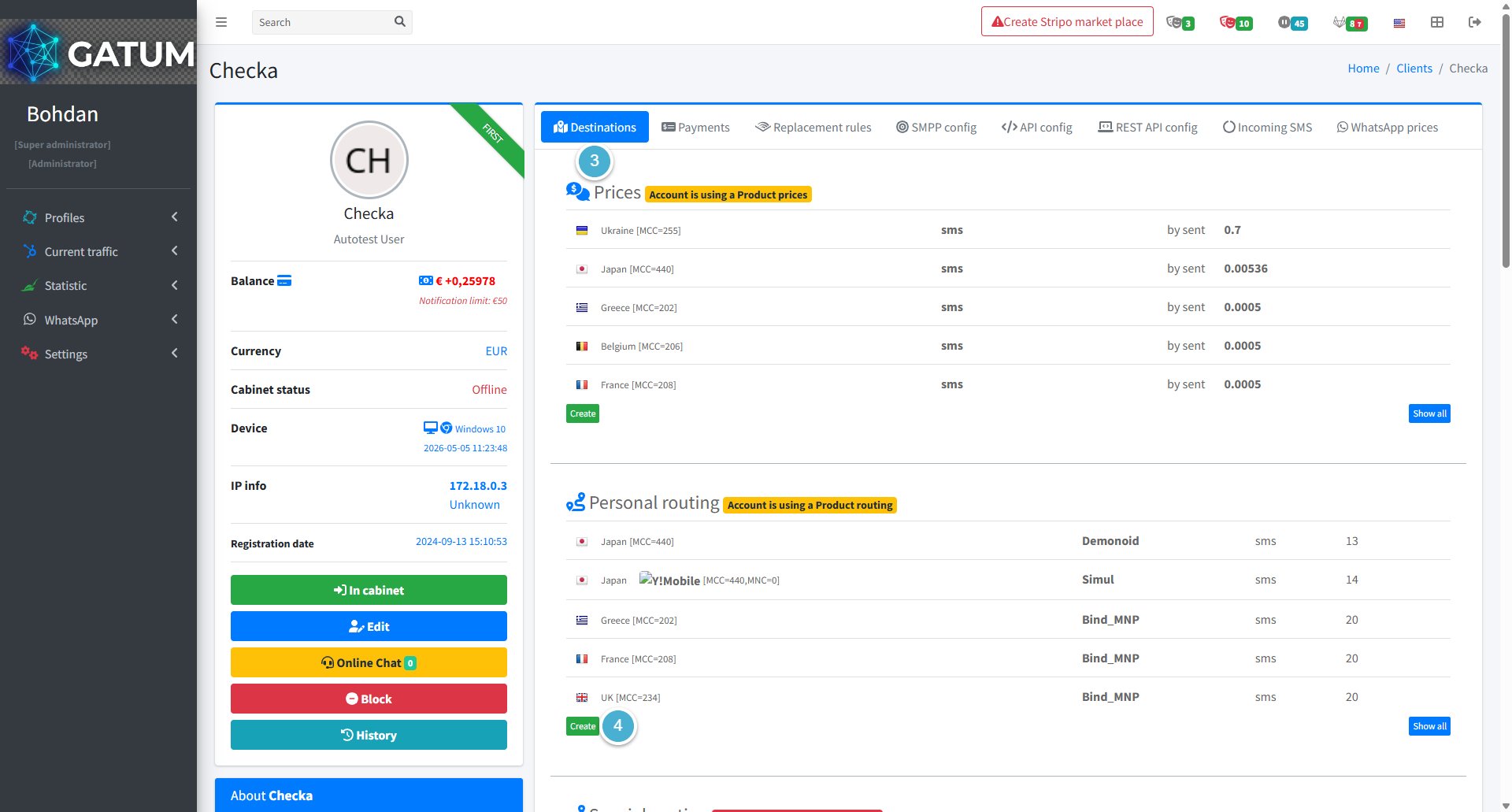
Open the Destinations tab.
Click Create in the Personal routing block.
In the window that opens:
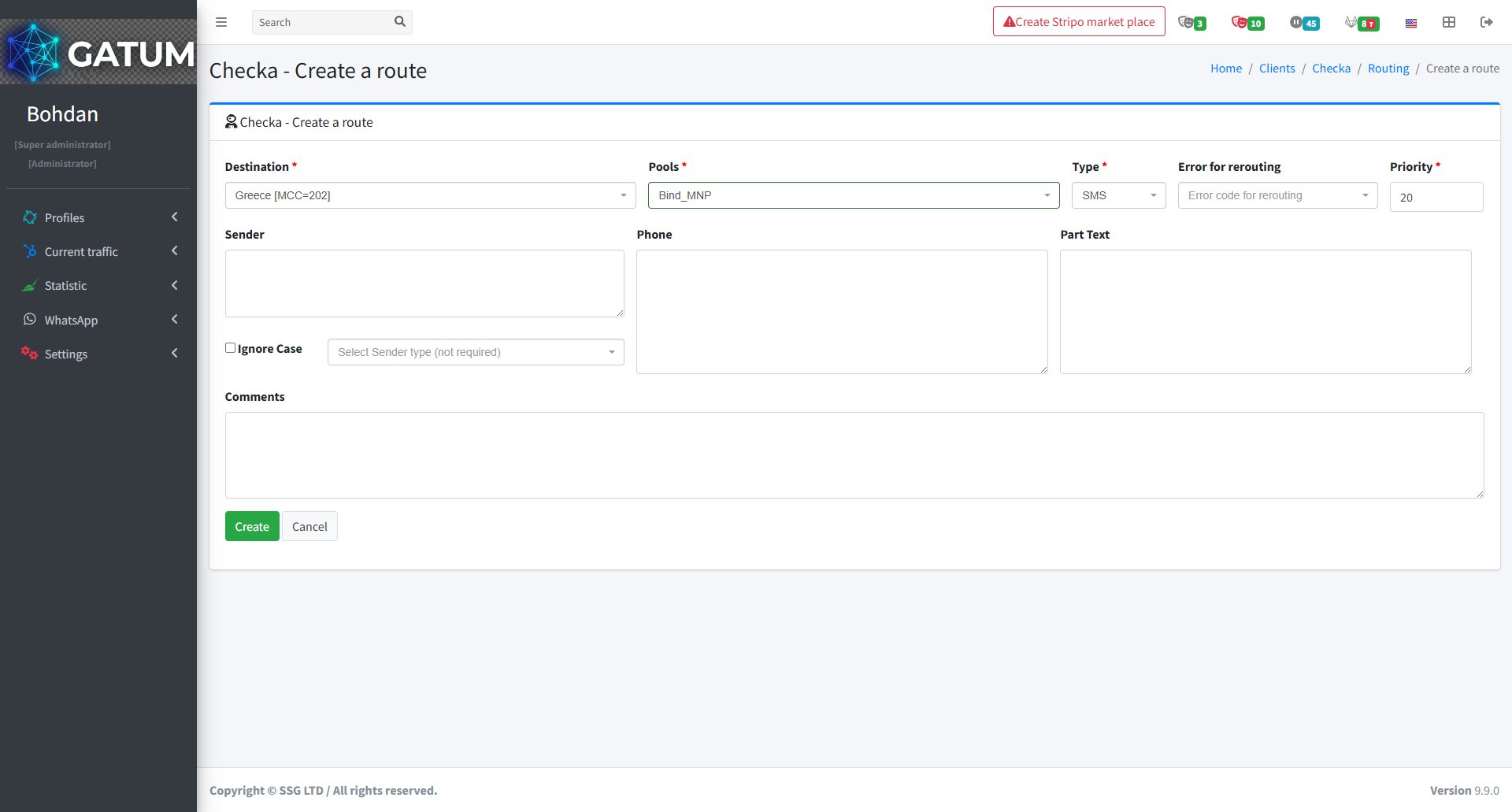
Fill in the fields:
Field
Description
Destination
The country or network this route applies to
Pools
The pool that distributes traffic between aggregators
Type
Message type for this route (e.g. SMS)
Priority
Order in which routes are used — lower number means higher priority
Error for rerouting (optional)
Error code that triggers automatic rerouting to the next pool
Sender (optional)
Restrict this route to a specific sender name. Enter one name per line if you have multiple
Phone (optional)
Restrict this route to a specific phone number. Enter one number per line if you have multiple
Part Text (optional)
Restrict this route by message content — the route will only apply if the SMS contains this word or phrase. Enter one value per line if you have multiple
Ignore Case (optional)
Ignore case when matching the sender or text
Sender type (optional)
Restrict this route to a specific sender type (e.g. Alphanumeric, Numeric)
Comments (optional)
Internal notes for this route
Click Create.
ⓘ
All filters work together — if you fill in several fields, the route will only apply when all conditions match at the same time. For these rules to take effect, the route must have a higher priority (lower number) than your general routes in the same direction.
You'll be taken back to the routing list where the new route will appear. From there you can add more routes, edit existing ones, or delete them.
When a message is held for review instead of being sent immediately, it means it was caught by one of the platform's moderation mechanisms. Understanding why this happens helps you manage traffic more effectively and configure moderation to match your workflow.
Reason 1:...
Why do SIDs get moderated, and how to set it up?
Sender ID moderation lets you control which sender names your clients can use. When it's enabled, a client can't send SMS with a new sender until you approve it. This helps you keep traffic clean and avoid unexpected sender names going out.
Go...
Why Do SMS Get Into the Waiting List?
When there is not enough balance to send all messages in a campaign, the platform automatically moves the unsent SMS to the Waiting SMS queue instead of dropping them. Once you top up your balance, you can resend them manually.
For example, if...
Cookie declaration last updated on 01/01/2025
This website uses cookies
We use cookies to enhance your browsing experience, provide social media features, and analyze our traffic.
You consent to our cookies if you continue to use our website.