Databases let you save and organize contact lists for SMS campaigns. Instead of entering phone numbers manually every time, you create a database once and reuse it across multiple campaigns.
Step 1: Create a Database
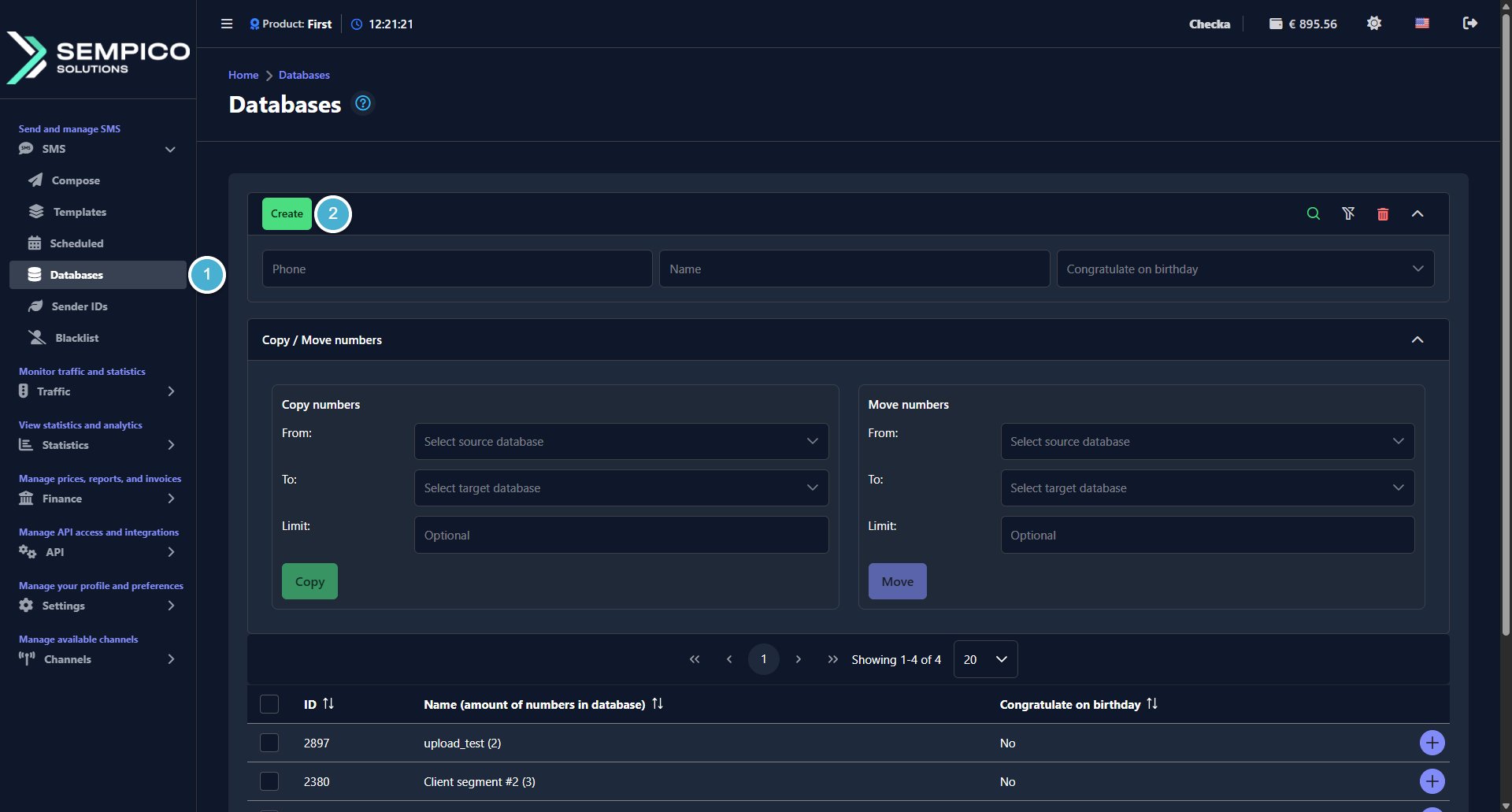
Go to SMS → Databases.
Click the Create button:
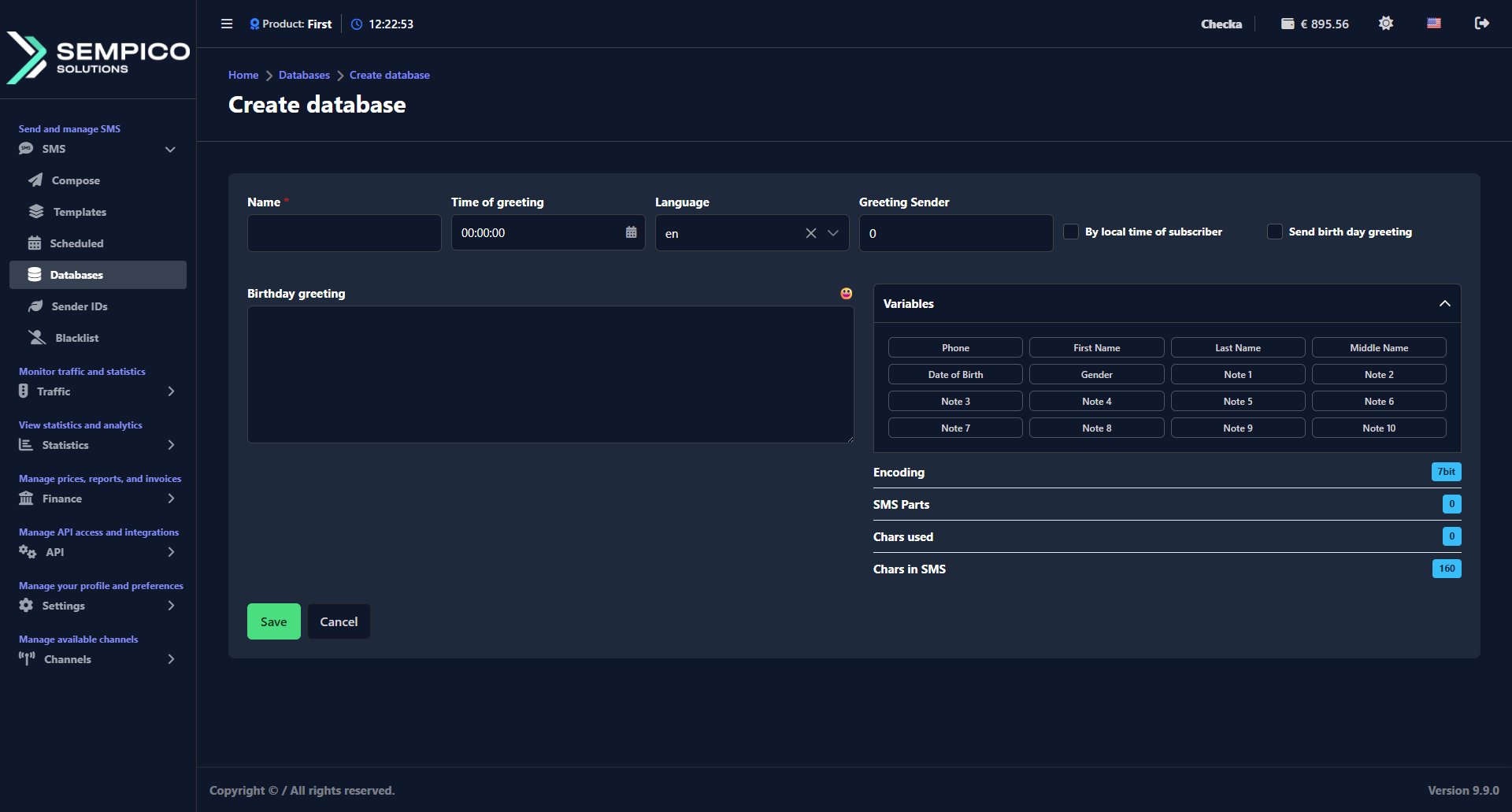
In the window that opens:
Fill in the required fields:
Field
What to do
Name
A clear name for the database. For example, "Clients UK" or "Newsletter subscribers"
Time of greeting
The time when the birthday greeting should be sent
Language
The language of the birthday greeting
Greeting Sender (optional)
The Sender ID used for birthday greetings
By local time of subscriber
Enable to send the greeting at the subscriber's local time
Send birthday greeting
Enable to activate automatic birthday greetings
Birthday greeting (optional)
The SMS text for the birthday greeting. Supports Variables and emoji
Click Save.
The database will appear in the list on the Databases page.
Step 2: Add Numbers to the Database
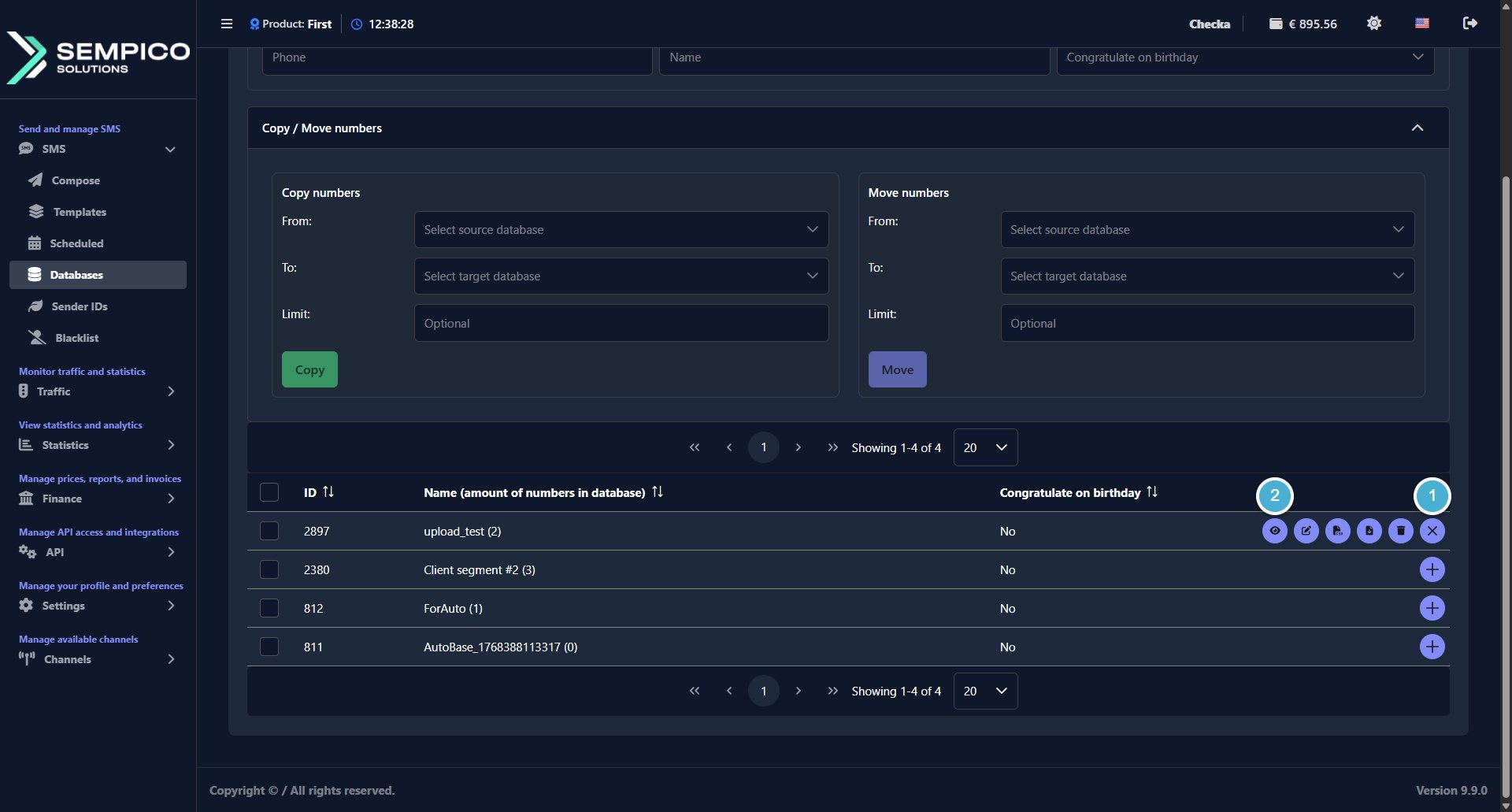
On the Databases page, click the + button on the right side of the database row, then click View:
You can add numbers in two ways:
Option A: Add One Number Manually
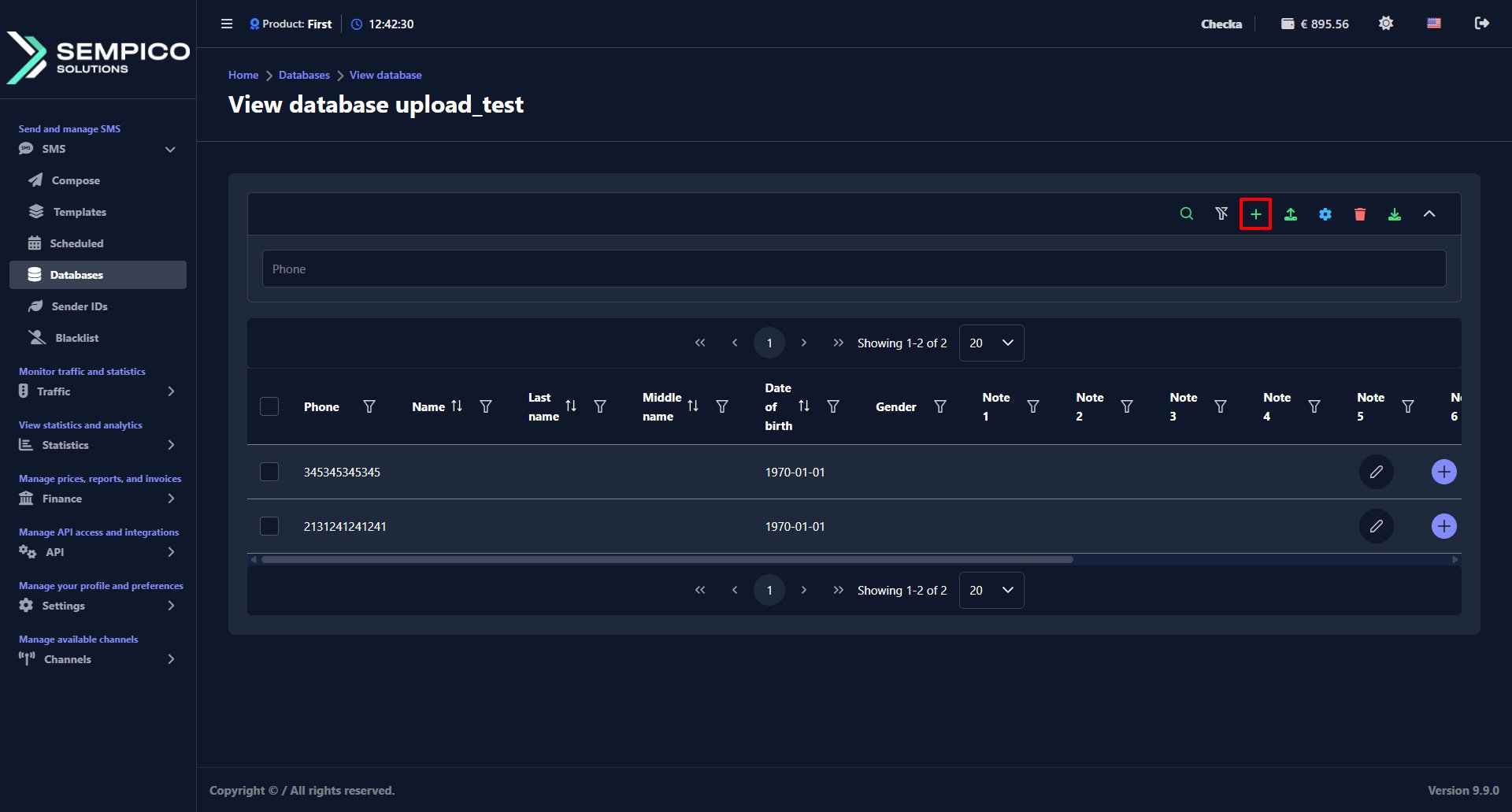
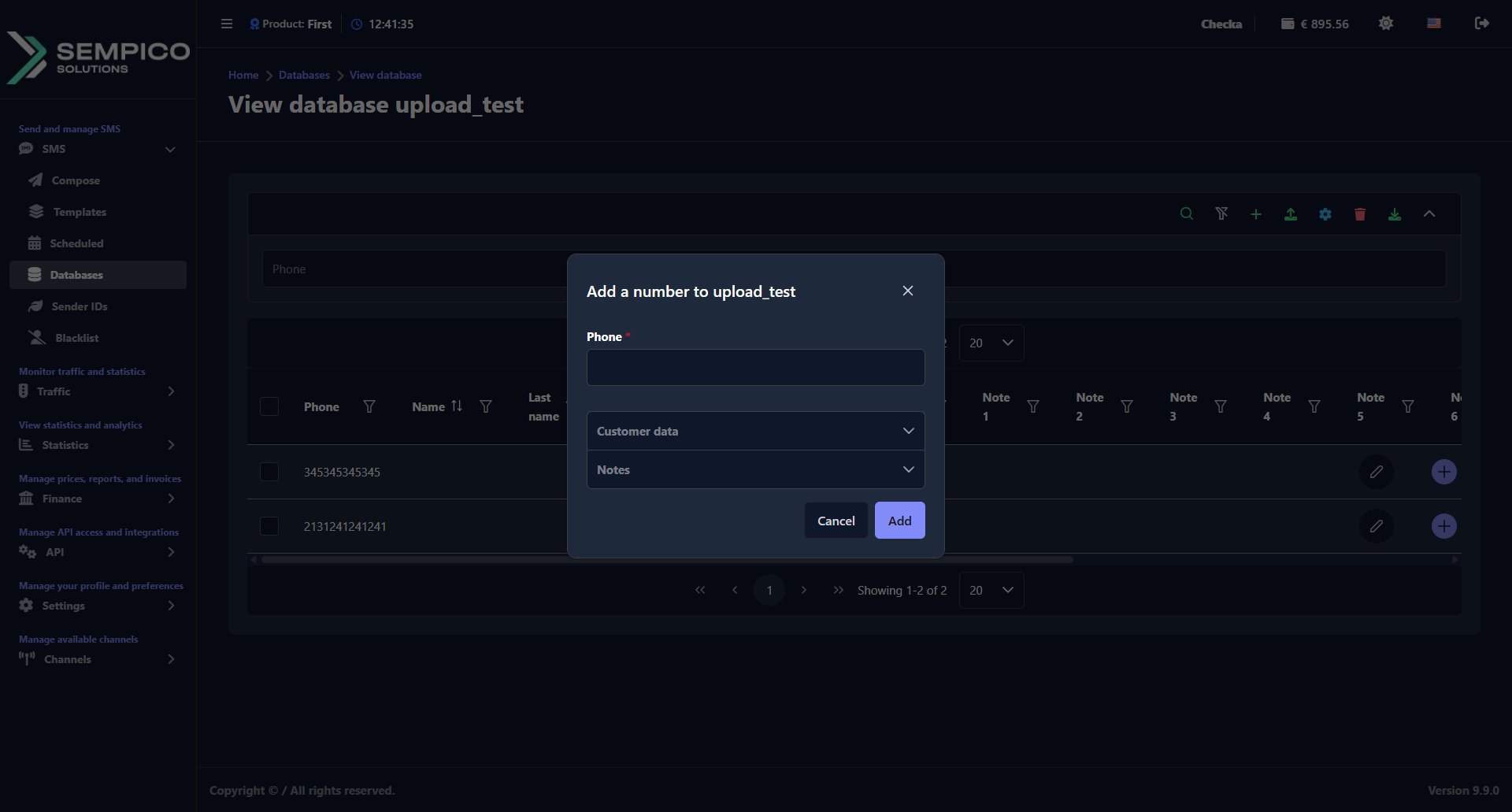
Click the + button in the top right corner of the page:
In the window that opens:
Fill in the fields:
Click Add.
Option B: Upload Numbers from a File
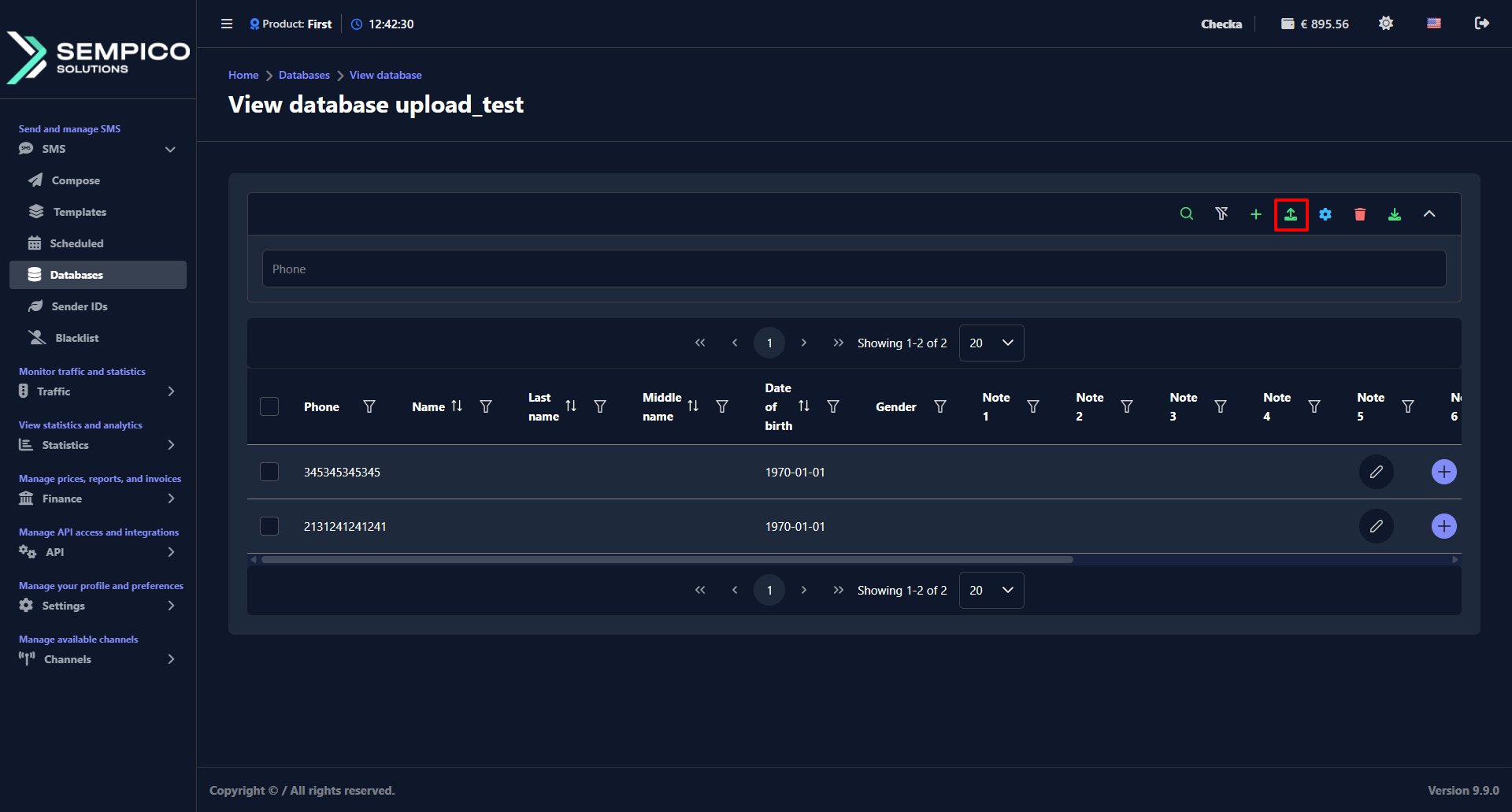
Click the Upload numbers button (arrow up icon) in the top right corner:
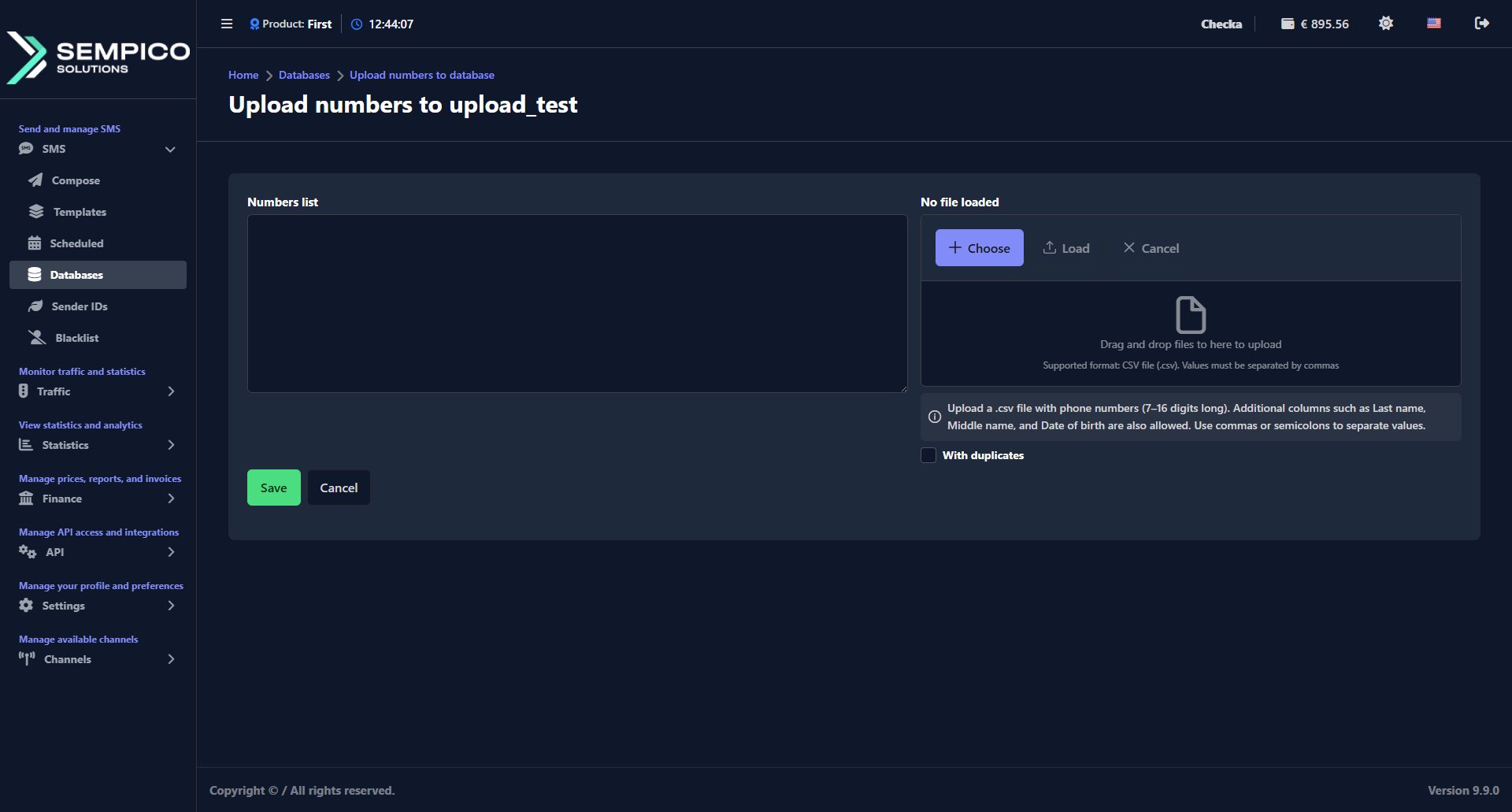
In the window that opens:
Add numbers in one of two ways:
Enter them manually in the Numbers list field — one number per line or separated by commas
Upload a CSV file using the file upload block on the right — click Choose to select the file, then click Load
The CSV file must contain phone numbers 7–16 digits long. Additional columns, such as Last name, Middle name, and Date of birth, are supported. Use commas or semicolons to separate values.
Enable With duplicates if you want to allow the same number to appear more than once in the database.
Click Save.
Copy or Move Numbers Between Databases
On the main Databases page, you will find the Copy / Move numbers block that lets you transfer numbers from one database to another:
To copy numbers:
In the Copy numbers block, select the source database in the From field and the target database in the To field.
Optionally, set a Limit to copy only a specific number of records.
Click Copy. The numbers will be added to the target database. The source database remains unchanged.
To move numbers:
In the Move numbers block, select the source database in the From field and the target database in the To field.
Optionally, set a Limit to move only a specific number of records.
Click Move. The numbers will be added to the target database and removed from the source.
SMS is a simple and familiar communication channel. Most of us remember old mobile phones thatshowed a character counter while typing a message. Today, smartphones often hide this counter,but the technical limits of SMS have not disappeared.For anyone...
Sempico Solutions SMS Integration with ActiveCampaign
ActiveCampaign is a marketing and sales automation platform designed to drive revenue growth for businesses. It empowers users to create personalized marketing campaigns, automate customer follow-up, and optimize sales efficiency.
To start sending SMS marketing via Sempico...
Sempico Solutions SMS Integration with Fast Track
Sempico Solutions can be integrated with Fast Track CRM through Fast Track’s Custom SMS Solution framework.
The integration enables iGaming operators to use Sempico as an SMS delivery layer for CRM activities, lifecycle automation, player engagement campaigns,...
Cookie declaration last updated on 01/01/2025
This website uses cookies
We use cookies to enhance your browsing experience, provide social media features, and analyze our traffic.
You consent to our cookies if you continue to use our website.