Content replacement rules let you automatically modify the text of outgoing SMS messages before they're sent. You can use them to swap out specific words or phrases, remove unwanted content, or apply built-in transformations. All traffic from the client goes through these rules regardless of which aggregator is used.
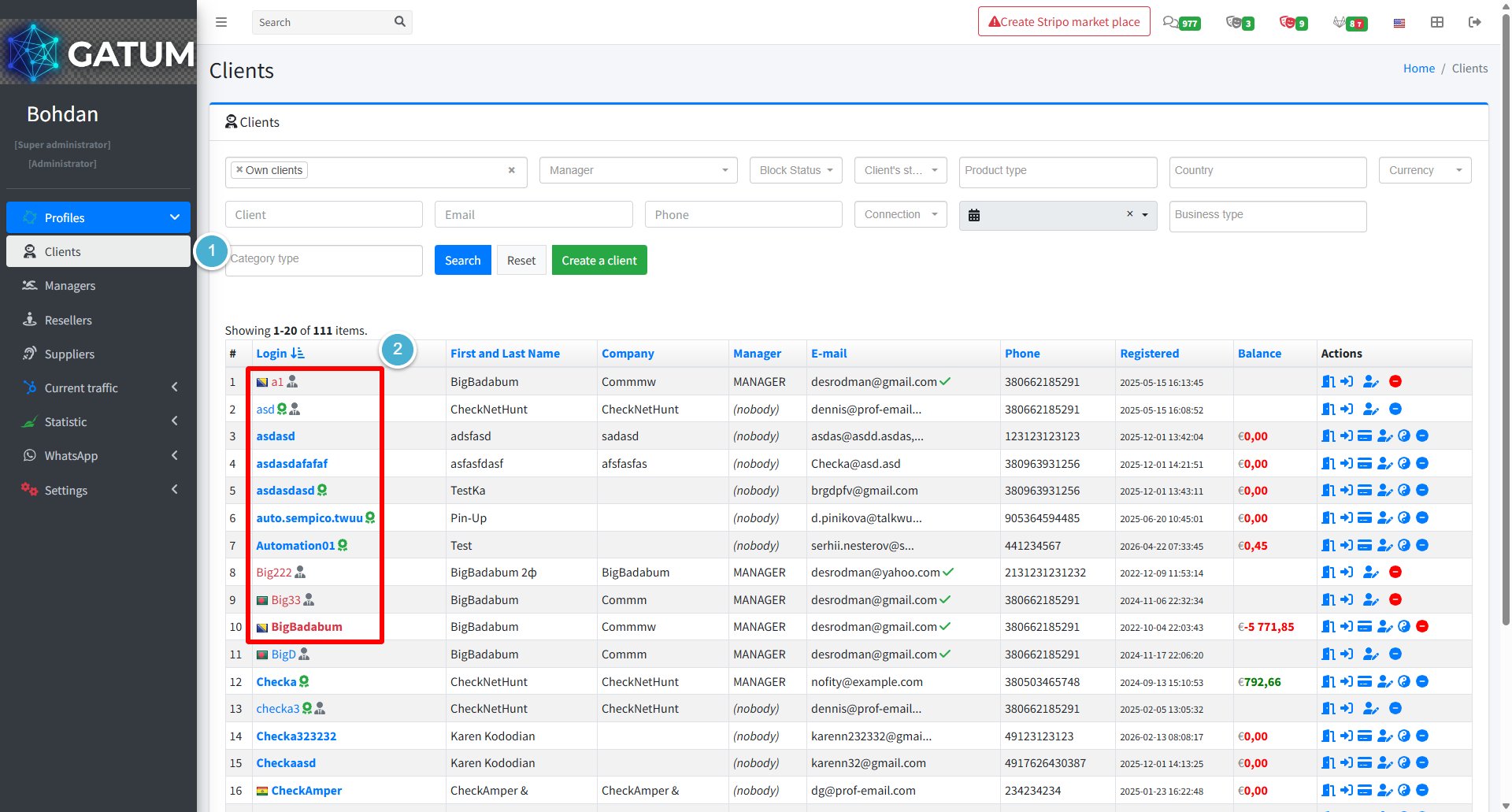
Go to Profiles → Clients.
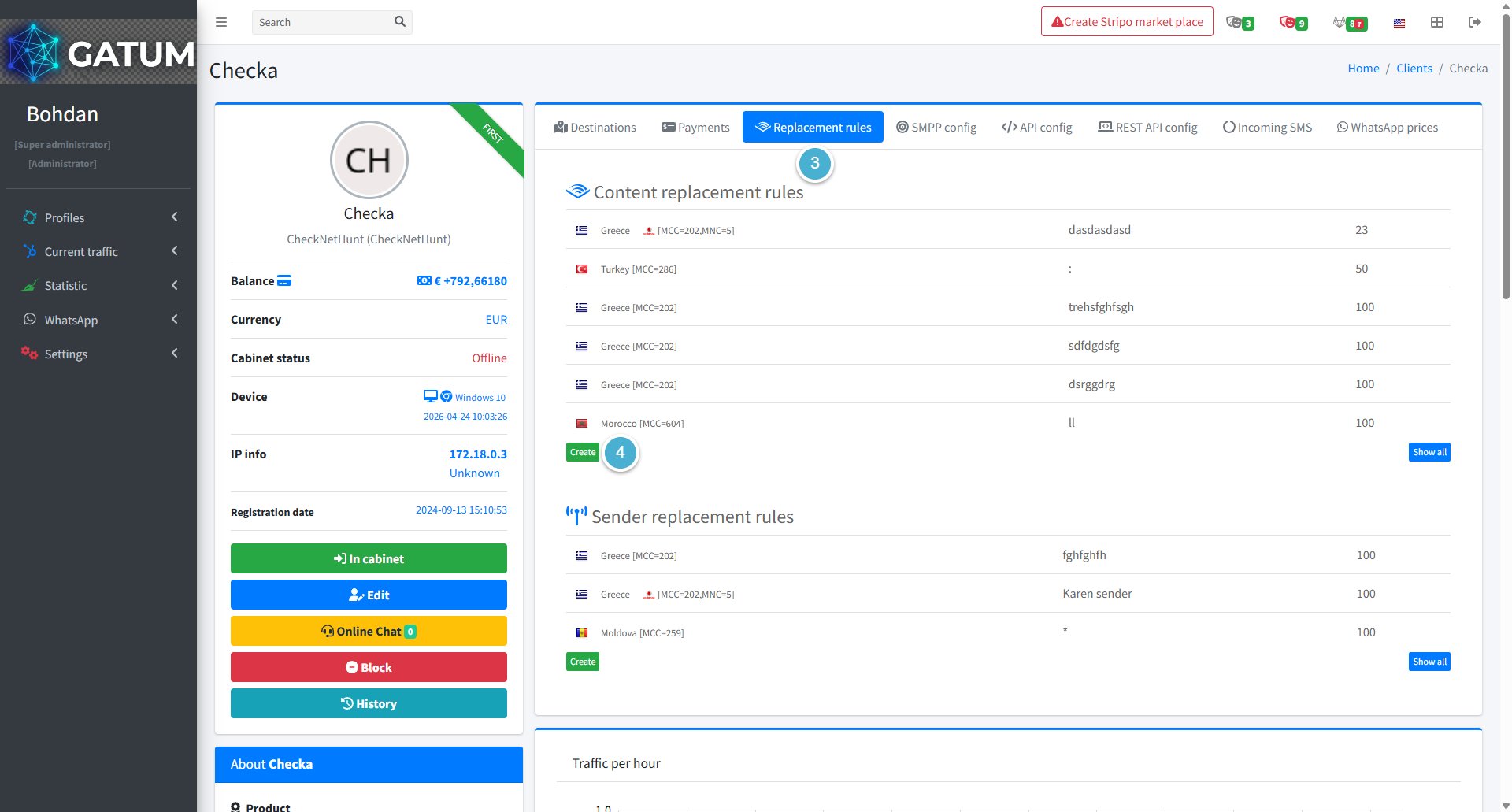
Click on the client's name.
Open the Replacement rules tab.
Click Create in the Content replacement rules block:
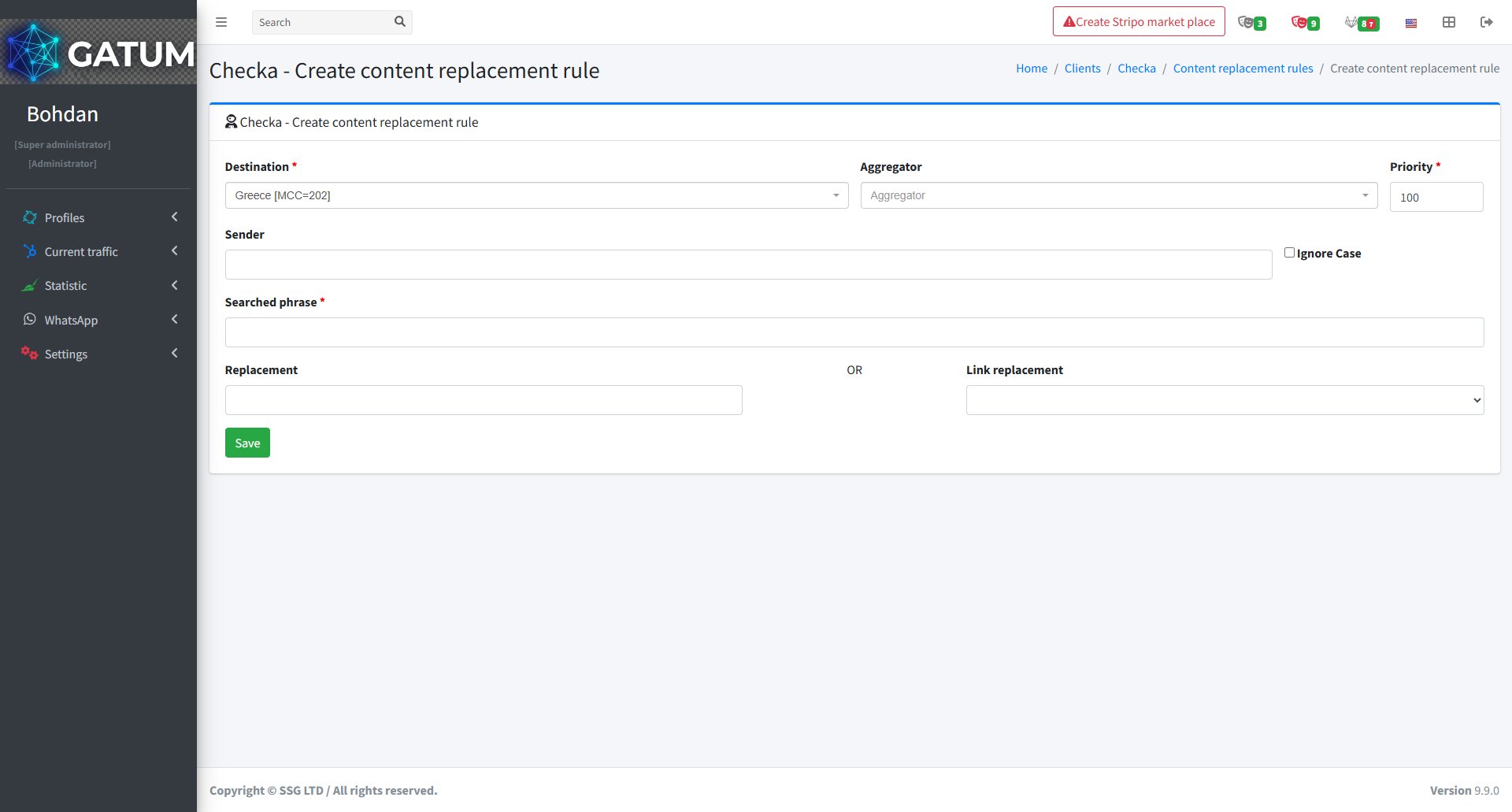
In the window that opens:
Fill in the fields:
Field
Description
Destination
The country or network this rule applies to
Priority
Order in which rules are applied — lower number means higher priority
Aggregator (optional)
Apply this rule only when sending through a specific aggregator. Leave empty to apply to all
Sender (optional)
Apply this rule only to messages with a specific sender name. Leave empty to apply to all
Ignore Case (optional)
Match the searched phrase regardless of capitalisation
Searched phrase
The word or phrase to look for in the message content
Replacement (optional)
The text to replace the searched phrase with
Link replacement (optional)
Select a built-in transformation to apply instead of a text replacement
Click Save.
Built-in Link Replacement Options
The Link replacement dropdown contains ready-made transformations you can apply without writing custom text:
Option
What it does
Persian digits
Converts all Arabic/Roman digits in the message to Persian digits (e.g. 1 → ١, 2 → ٢)
NULL
Erases the phrase found in the Searched phrase field from the message content entirely
Macros
Macros are special commands you enter in the Searched phrase field. They perform specific automated actions on the SMS content:
Macro
What it does
{SAVEDIGITS}
Finds and remembers standalone digit sequences (e.g. codes, passwords)
{SAVEURL}
Finds and remembers a URL in the message
{SAVEPHONE}
Finds and remembers a phone number in the message
{CHANGEDIGITS}
Inserts a character between the remembered digits
{CHANGEDIGITSEACHSECOND}
Inserts a character after every 2 symbols in the remembered digits
{EMPTY}
Matches messages with no content and replaces them with the text in the Replacement field
{BEGIN}
Inserts the value from the Replacement field at the start of the message
{END}
Inserts the value from the Replacement field at the end of the message
{TRIM}
Removes spaces at the beginning and end of the message
{TRIM-RTL}
Removes the right-to-left character (used for Arabic and Hebrew content)
{NEWLINE}
Replaces newline characters with a space
{PHONE}
Replaces the recipient's phone number with custom content
{UPPERCASE}
Converts all message text to upper case
{LOWERCASE}
Converts all message text to lower case
{CLEAR}
Erases all message content
{CUTONEPART}
Cuts the message to one part — only the first part is kept
{CUTIFMORE}
Removes extra parts if the message exceeds one part after content replacement
{RANDOM_SYMBOLS_BEGIN}
Inserts random characters at the start of the message. The number of characters is set in the Replacement field
{RANDOM_SYMBOLS_END}
Inserts random characters at the end of the message
{RANDOM_DIGITS_BEGIN}
Inserts random digits at the start of the message
{RANDOM_DIGITS_END}
Inserts random digits at the end of the message
{CUTBYLENGTH}
Truncates the message to the number of characters specified in the Replacement field
ⓘ
When using multiple macros for the same client, the order of execution is controlled by the Priority field. For example, if you're using {SAVEDIGITS}, {END}, and {CUTBYLENGTH} together, set {SAVEDIGITS} to priority 1, {END} to 2, and {CUTBYLENGTH} to 3 so they run in the right sequence.
If you need a custom macro for a specific use case, contact your Gatum manager and it can be built individually for you.
When a message is held for review instead of being sent immediately, it means it was caught by one of the platform's moderation mechanisms. Understanding why this happens helps you manage traffic more effectively and configure moderation to match your workflow.
Reason 1:...
Why do SIDs get moderated, and how to set it up?
Sender ID moderation lets you control which sender names your clients can use. When it's enabled, a client can't send SMS with a new sender until you approve it. This helps you keep traffic clean and avoid unexpected sender names going out.
Go...
Why Do SMS Get Into the Waiting List?
When there is not enough balance to send all messages in a campaign, the platform automatically moves the unsent SMS to the Waiting SMS queue instead of dropping them. Once you top up your balance, you can resend them manually.
For example, if...
Cookie declaration last updated on 01/01/2025
This website uses cookies
We use cookies to enhance your browsing experience, provide social media features, and analyze our traffic.
You consent to our cookies if you continue to use our website.