Templates let you save message texts and reuse them across different campaigns. This saves time when you regularly send similar messages — just pick a template and adjust it if needed.
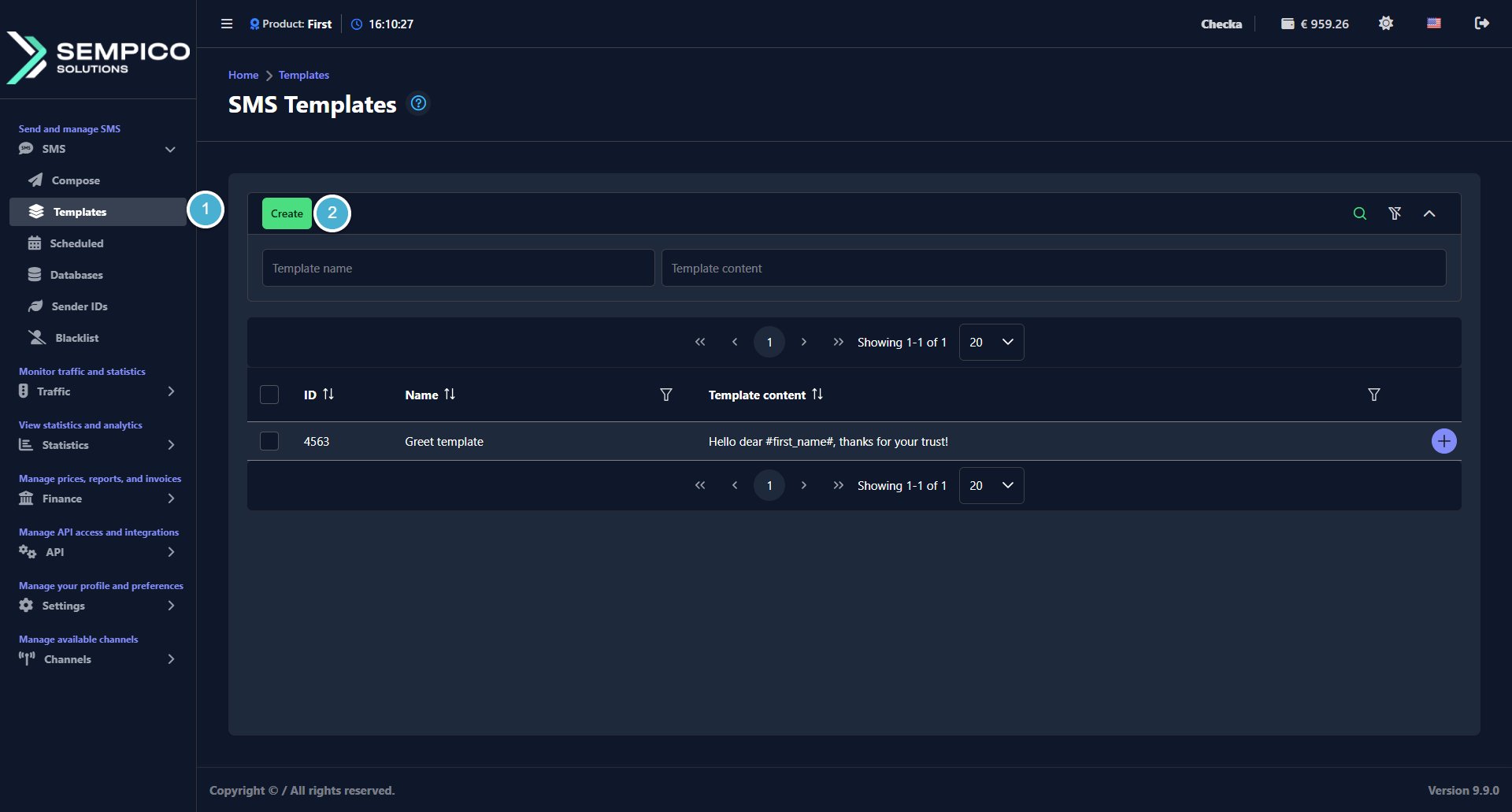
Go to SMS → Templates.
Click the Create button:
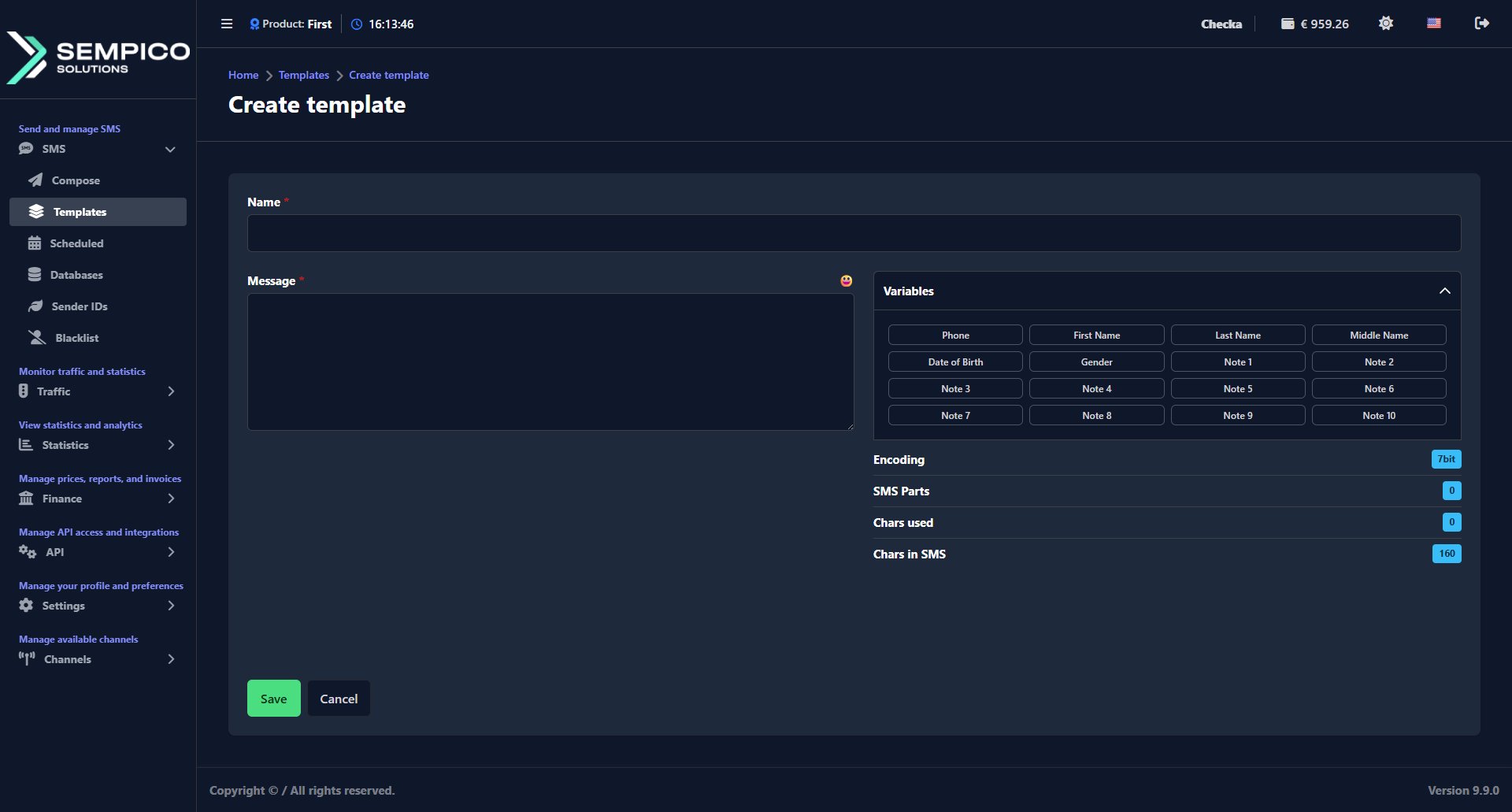
In the window that opens:
Fill in the required fields:
Field
Description
Name
A clear name for the template so it's easy to find later. For example, "Autumn sales" or "Welcome message"
Message
The text of your template. Can include variables for personalization
If you want to personalize messages for each recipient, use Variables — click any variable button on the right to insert it into the message text.
During sending, each placeholder is automatically replaced with the actual value from the contact record.
Available variables include: Phone, First Name, Last Name, Middle Name, Date of Birth, Gender, and Note 1–10.
A personalized template might look like this:
Hello dear #first_name#, don't miss our seasonal sale — up to #note1# off!
ⓘ
For variables to work correctly, the contact base you use for sending must have the corresponding fields filled in.
Click Save.
The template will appear in the list on the SMS Templates page.
SMS is a simple and familiar communication channel. Most of us remember old mobile phones thatshowed a character counter while typing a message. Today, smartphones often hide this counter,but the technical limits of SMS have not disappeared.For anyone...
Sempico Solutions SMS Integration with ActiveCampaign
ActiveCampaign is a marketing and sales automation platform designed to drive revenue growth for businesses. It empowers users to create personalized marketing campaigns, automate customer follow-up, and optimize sales efficiency.
To start sending SMS marketing via Sempico...
Sempico Solutions SMS Integration with Fast Track
Sempico Solutions can be integrated with Fast Track CRM through Fast Track’s Custom SMS Solution framework.
The integration enables iGaming operators to use Sempico as an SMS delivery layer for CRM activities, lifecycle automation, player engagement campaigns,...
Cookie declaration last updated on 01/01/2025
This website uses cookies
We use cookies to enhance your browsing experience, provide social media features, and analyze our traffic.
You consent to our cookies if you continue to use our website.