Content filters let you automatically catch outgoing messages that contain specific words, phrases, or patterns. Any message that matches a filter is sent to the moderation queue instead of being delivered immediately – giving you or your manager a chance to review it before it reaches the recipient. This works for clients with Automatic moderation enabled.
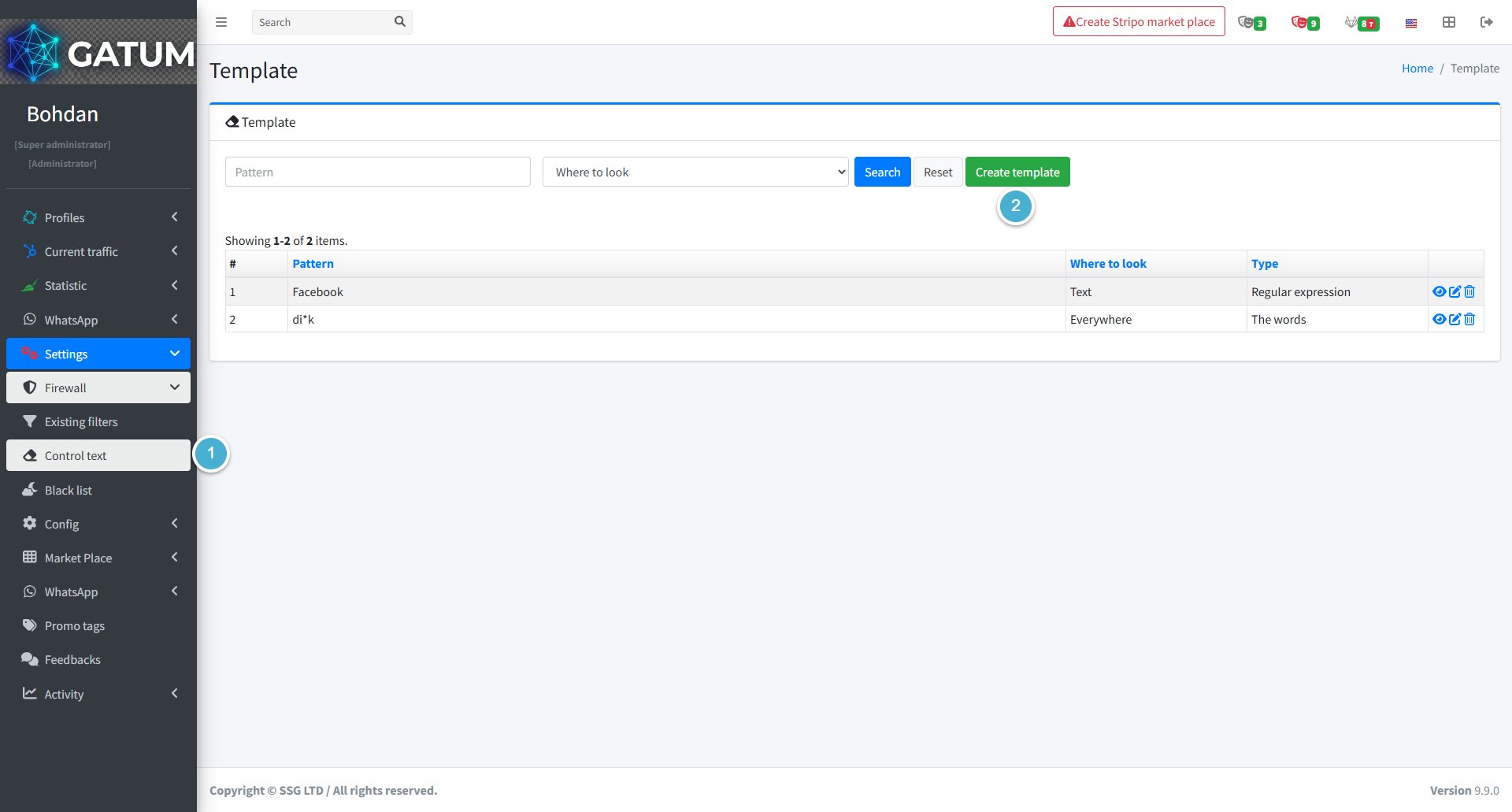
Go to Settings → Firewall → Control text.
Click Create template.
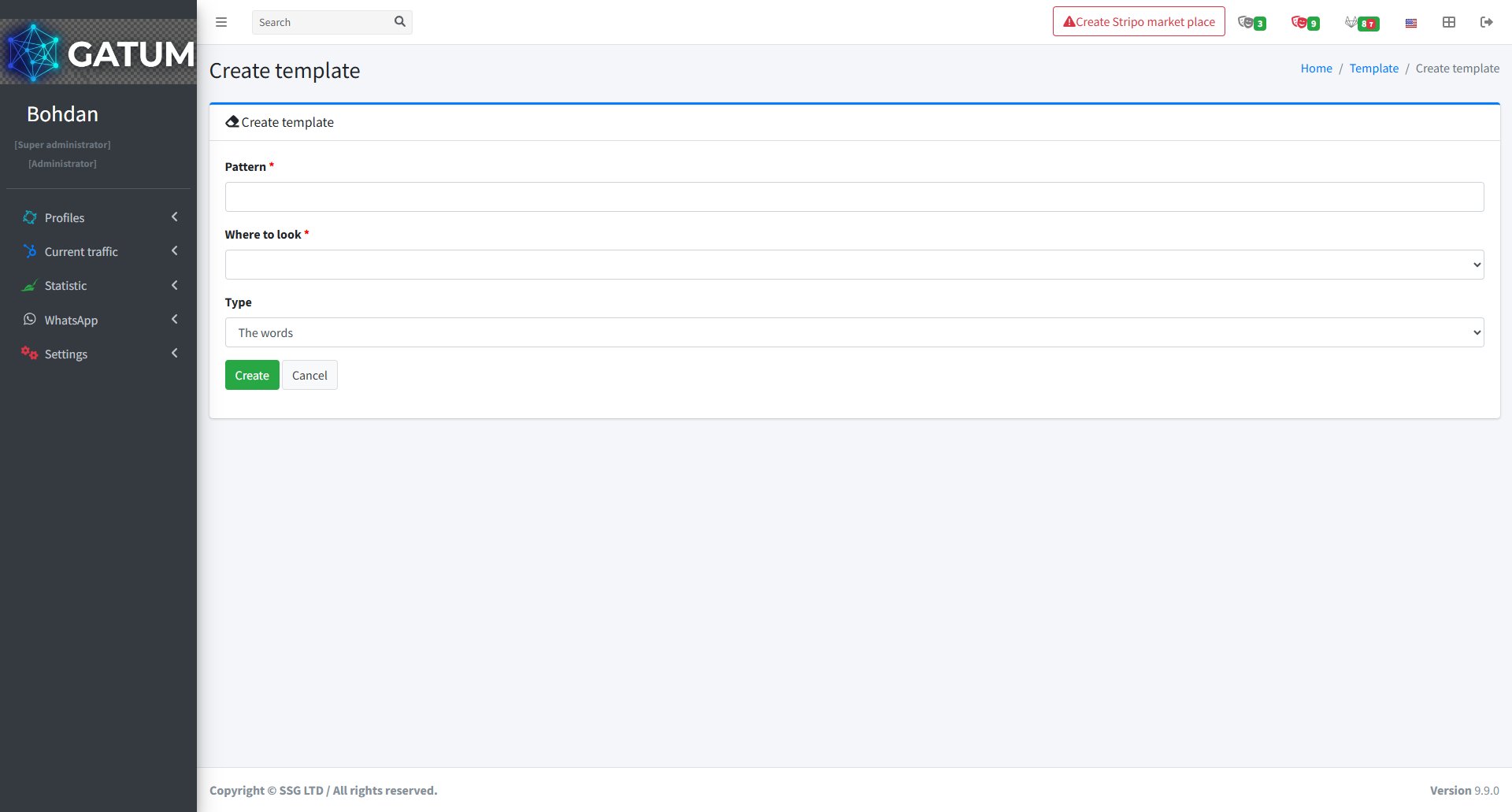
In the window that opens:
Fill in the fields:
Field
Description
Pattern
The word, phrase, or expression to search for in outgoing messages.
Where to look
The part of the message to search: Text (message body only), Sender (sender name only), or Everywhere (both).
Type
How the pattern is matched: The words for exact word matching, or Regular expression for pattern-based matching.
Click Create.
Once saved, the filter is active immediately. Any client with Automatic moderation enabled who sends a message matching the pattern will have that message held for review in Current traffic → Moderation. To view and manage all active filters, return to the Control text page.
When a message is held for review instead of being sent immediately, it means it was caught by one of the platform's moderation mechanisms. Understanding why this happens helps you manage traffic more effectively and configure moderation to match your workflow.
Reason 1:...
Why do SIDs get moderated, and how to set it up?
Sender ID moderation lets you control which sender names your clients can use. When it's enabled, a client can't send SMS with a new sender until you approve it. This helps you keep traffic clean and avoid unexpected sender names going out.
Go...
Why Do SMS Get Into the Waiting List?
When there is not enough balance to send all messages in a campaign, the platform automatically moves the unsent SMS to the Waiting SMS queue instead of dropping them. Once you top up your balance, you can resend them manually.
For example, if...
Cookie declaration last updated on 01/01/2025
This website uses cookies
We use cookies to enhance your browsing experience, provide social media features, and analyze our traffic.
You consent to our cookies if you continue to use our website.