How to Automate SMS Notifications with Sempico Solutions and Zapier
06.07.2026
Zapier is an online automation tool that connects your favorite apps and services to automate workflows, enabling you to move information between them seamlessly. It supports over 3,000 apps, including popular ones like Gmail, Slack, and Salesforce. With Zapier, users can create “Zaps,” which are automated workflows that perform actions based on specific triggers, reducing the need for manual intervention and increasing productivity.
You can integrate and automate SMS sending according to your business processes using the Sempico Solutions app for Zapier. In order to do this you need to follow a few simple steps.
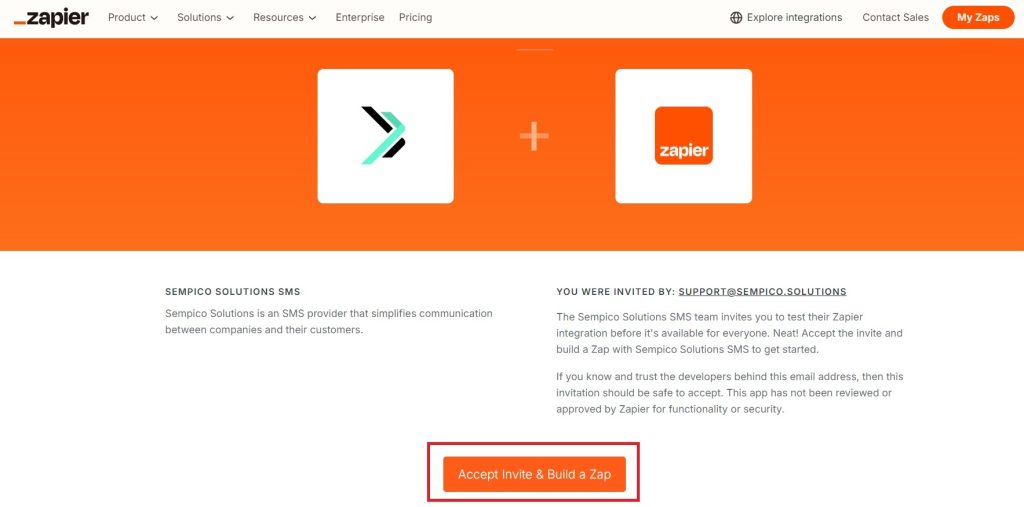
First, you need to open the Sempico Solutions SMS app page on the Zapier platform and accept the invitation.
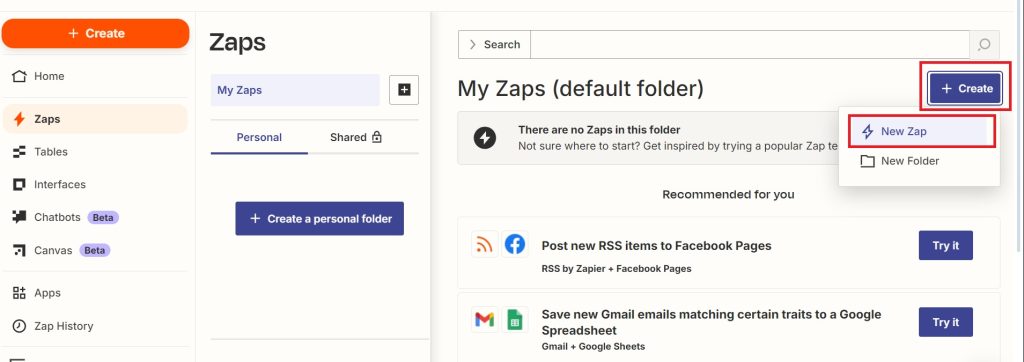
After this, you need to create a new Zap, which will be configured to send SMS.
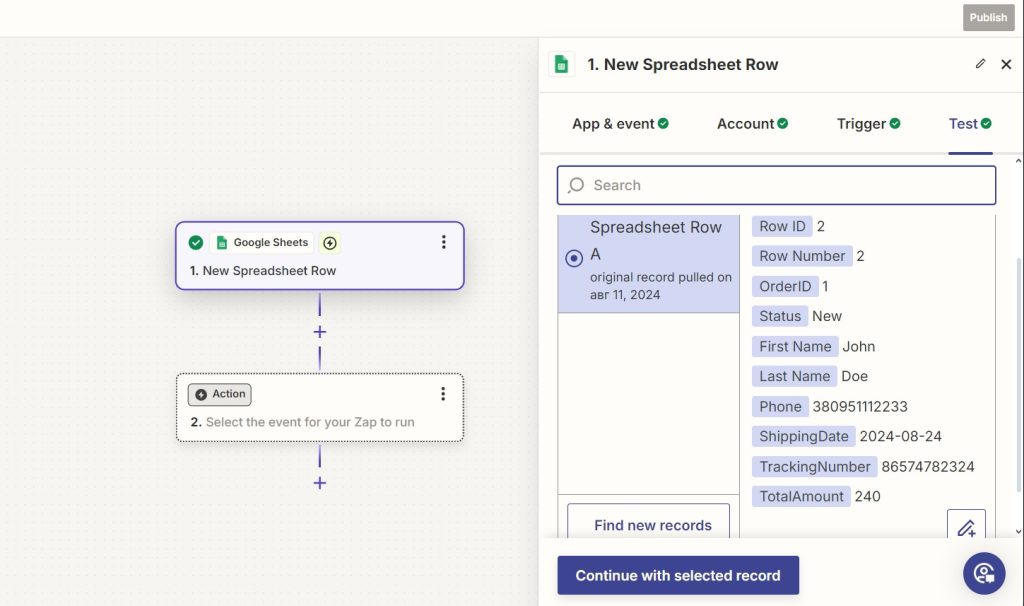
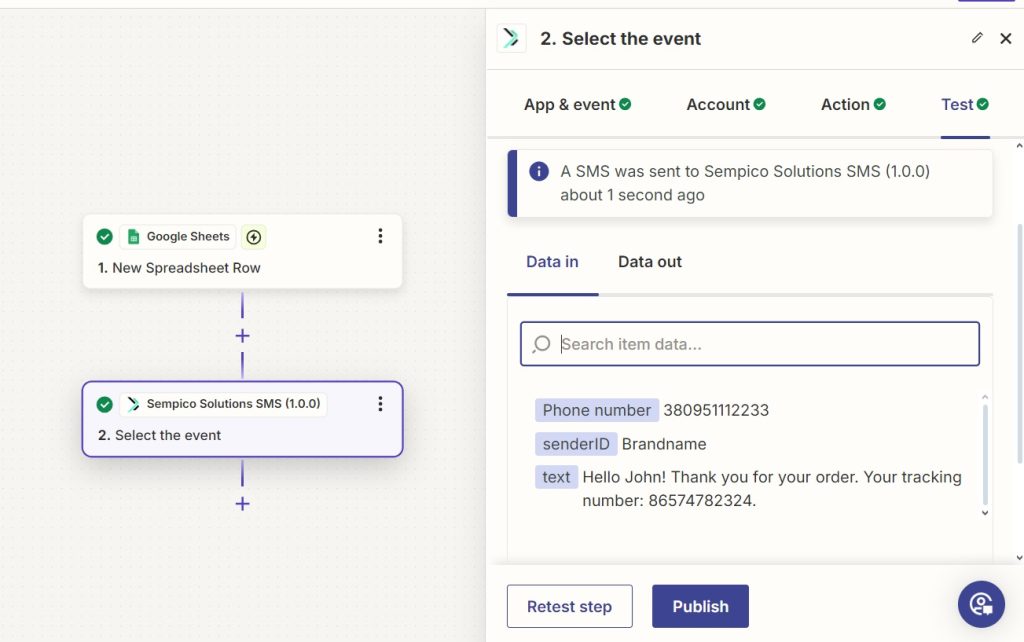
The trigger needs to be configured according to your requirements/business processes. For this example, we will use the New Spreadsheet Row trigger from Google Sheets.
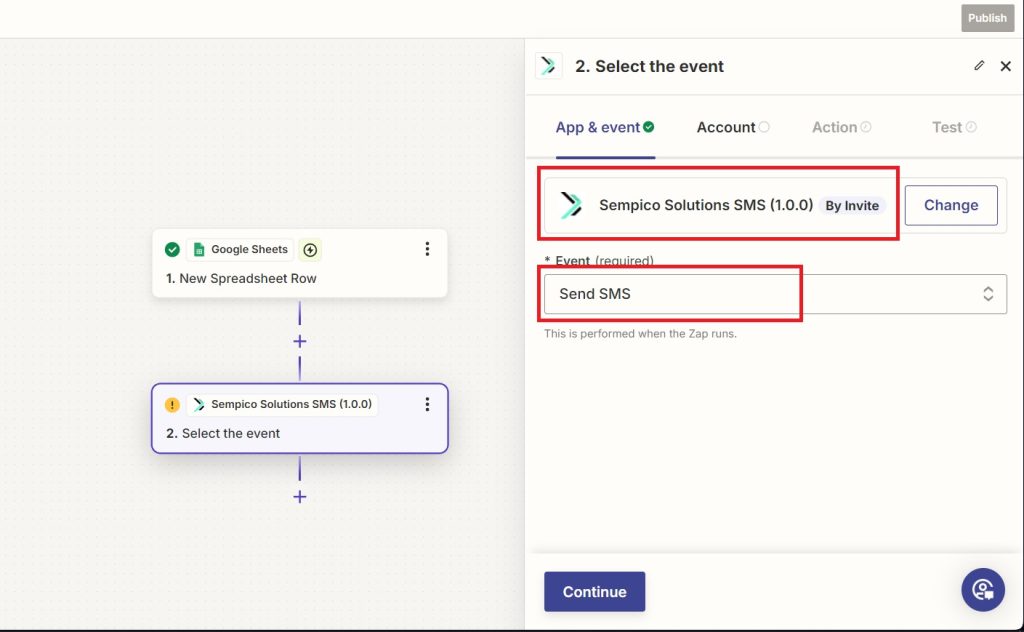
For Action you need to select the Sempico Solutions SMS application and the Send SMS event.
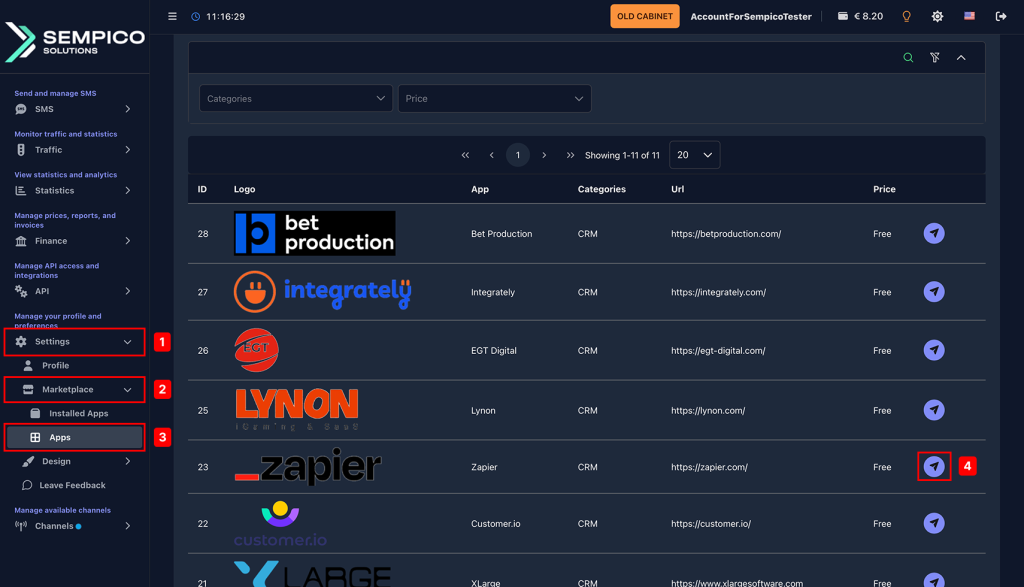
The next step is to connect your Sempico account to Zapier. To do this, log in to your Sempico account and go to Settings – Market Place – Applications and install the Zapier app.
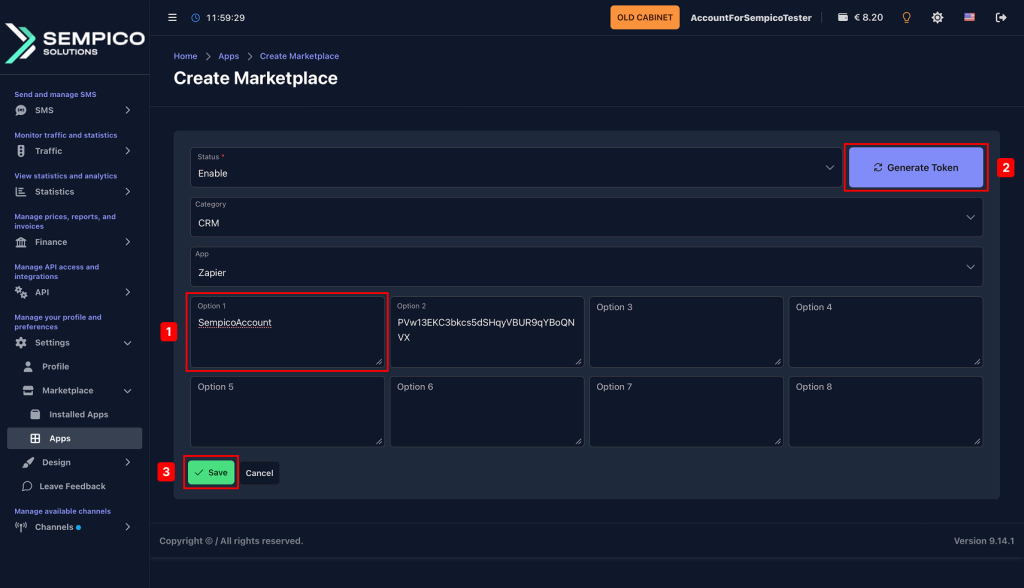
Click the Generate token button and enter the username you would like to use for integration in field 1 (can be the same as your account username), then save the settings.
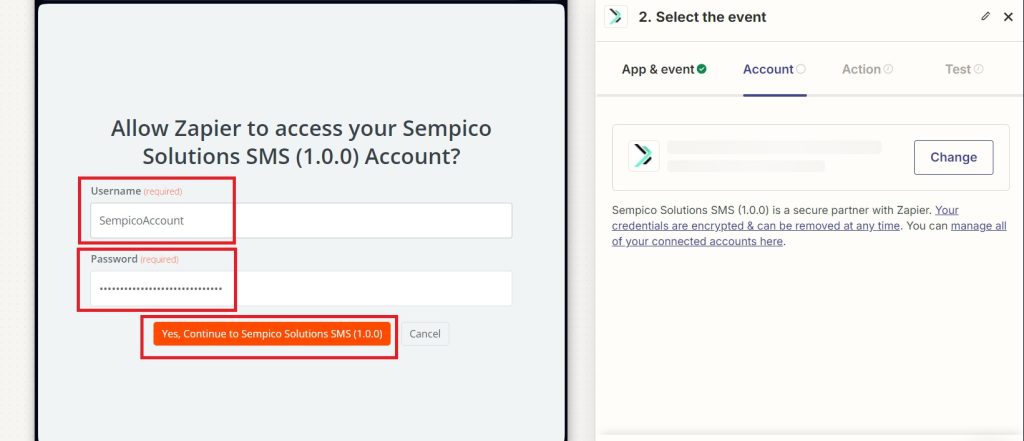
After that, connect your Sempico account to Zapier using the credentials you just saved.
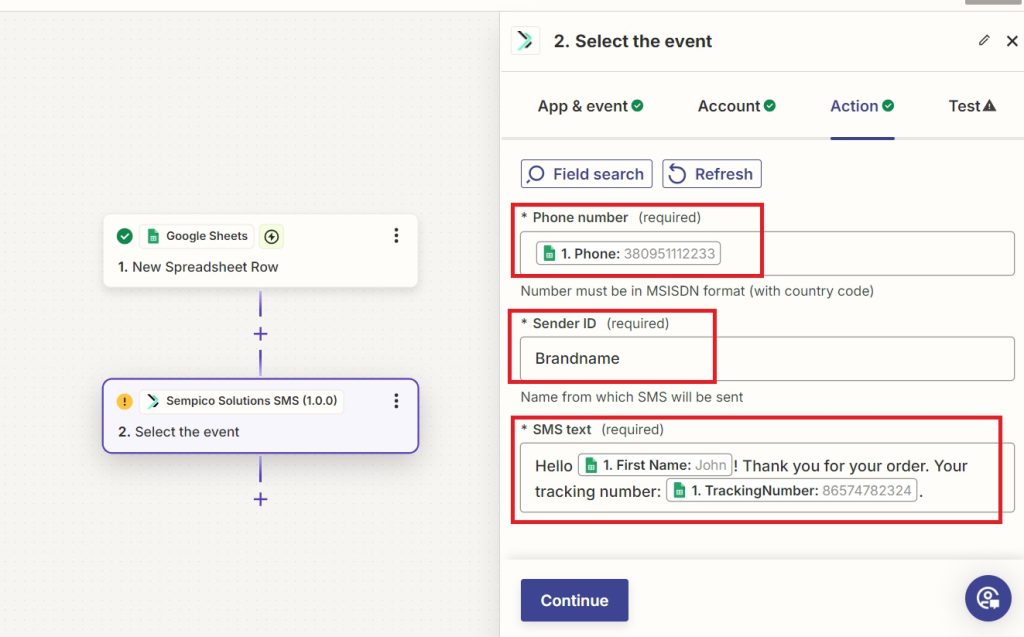
After this, you need to set up SMS sending: specify the phone number to which you want to send the SMS, Sender ID and SMS text. Please note that you have the option to use variables to fill in these fields.
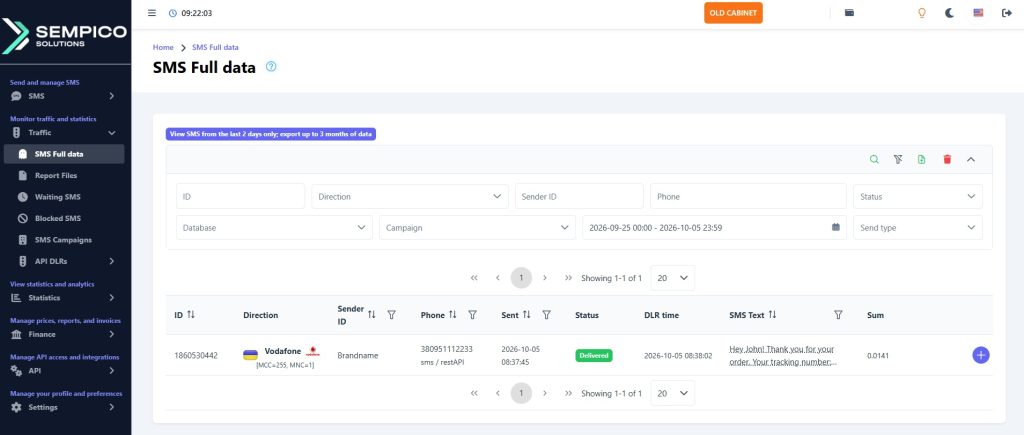
You also have the option to test sending SMS to make sure everything is set up correctly, and also to see the sent SMS in your account on the Sempico platform.
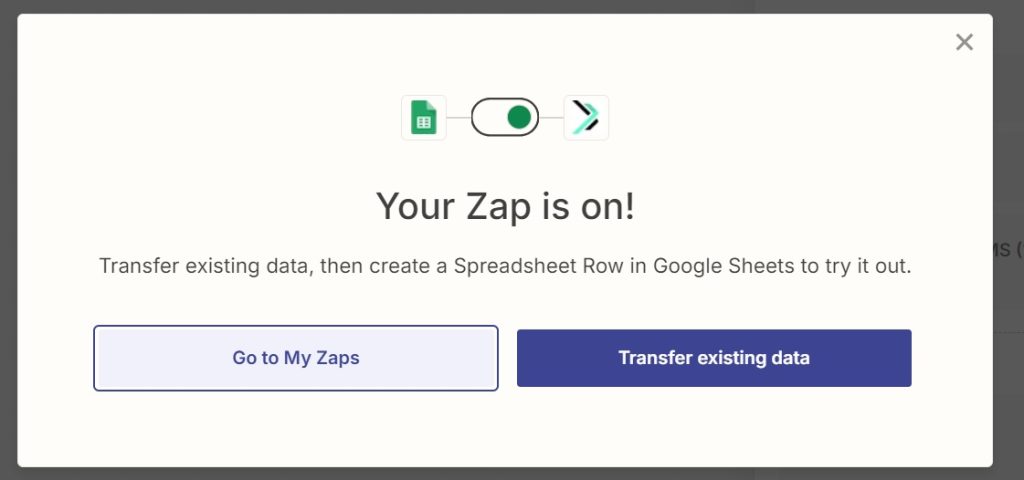
After that, click the Publish button to activate the Zap.
In case of any questions, please do not hesitate to contact us.
Sempico Solutions SMS Integration with ActiveCampaign
ActiveCampaign is a marketing and sales automation platform designed to drive revenue growth for businesses. It empowers users to create personalized marketing campaigns, automate customer follow-up, and optimize sales efficiency.
To start sending SMS marketing via Sempico...
Sempico Solutions SMS Integration with Fast Track
Sempico Solutions can be integrated with Fast Track CRM through Fast Track’s Custom SMS Solution framework.
The integration enables iGaming operators to use Sempico as an SMS delivery layer for CRM activities, lifecycle automation, player engagement campaigns,...
Sempico Solutions SMS Integration with Integrately
Integrately allows businesses to connect Sempico Solutions SMS with their everyday tools and automate SMS communication without building custom workflows from scratch.
With ready-to-use automations, teams can trigger SMS messages when an event occurs in a CRM,...
Cookie declaration last updated on 01/01/2025
This website uses cookies
We use cookies to enhance your browsing experience, provide social media features, and analyze our traffic.
You consent to our cookies if you continue to use our website.