Customer.io is a comprehensive customer engagement platform designed to help businesses create, send, and optimize personalized messages across various channels. It enables companies to automate their communication strategies, ensuring timely and relevant interactions with their customers.
Key Advantages:
Personalization: Tailor messages based on customer behavior and attributes, making communication more relevant and effective.
Automation: Streamline workflows with automated triggers and actions, reducing manual effort and increasing efficiency.
Multi-Channel Messaging: Reach customers via email, SMS, push notifications, and more, ensuring comprehensive engagement.
Segmentation: Create precise audience segments to target the right customers with the right messages.
Analytics and Reporting: Gain insights into campaign performance with robust analytics, helping to refine strategies for better results.
Integration: Easily integrates with various tools and platforms, enhancing its versatility and functionality within existing tech stacks.
By following a few simple steps you can easily set up sending SMS messages through the Sempico Solutions service directly from Customer.io platform:
In the Customer.io platform, you need to go to the Campaigns section and create a campaign in which you want to send SMS through the Sempico Solutions service. You should configure the campaign and its triggers according to your business processes and requirements.
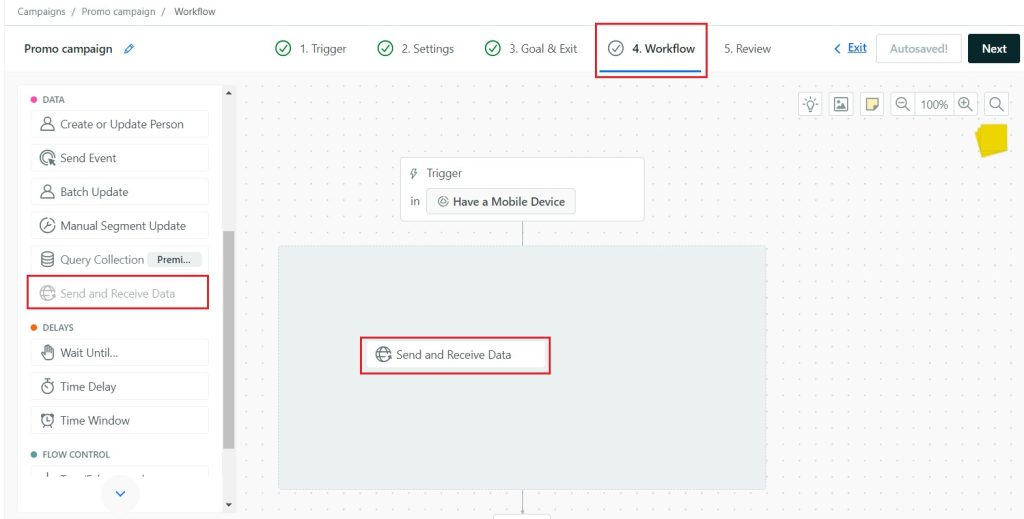
When you have moved to setting up the campaign Workflow, you need to select the “Send and Receive Data” element and move it to the workspace:
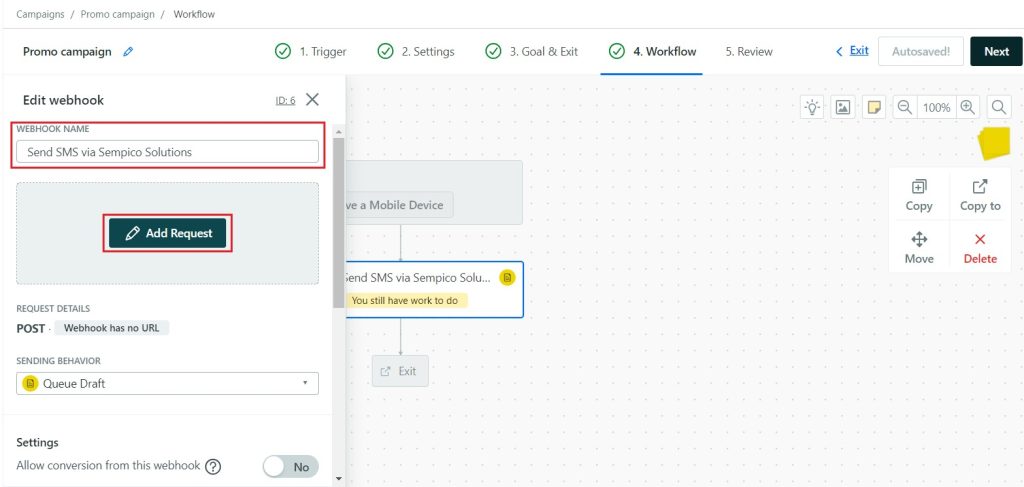
You can rename this element at your discretion, after which you must click the “Add Request” button:
You will see an interface where you need to configure a request to the Sempico Solutions API to send SMS:
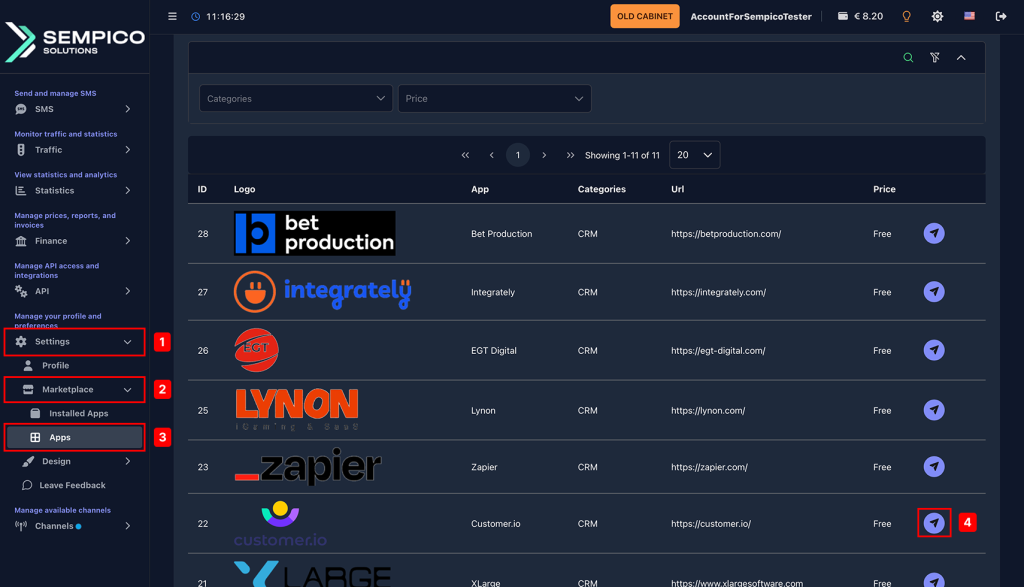
In order to do this, you need to log into your account on the Sempico Solutions platform or register if you have not already done so, and go to the Settings > Market Place > Applications section. In the list of applications, you need to find Customer.io and click the Install button.
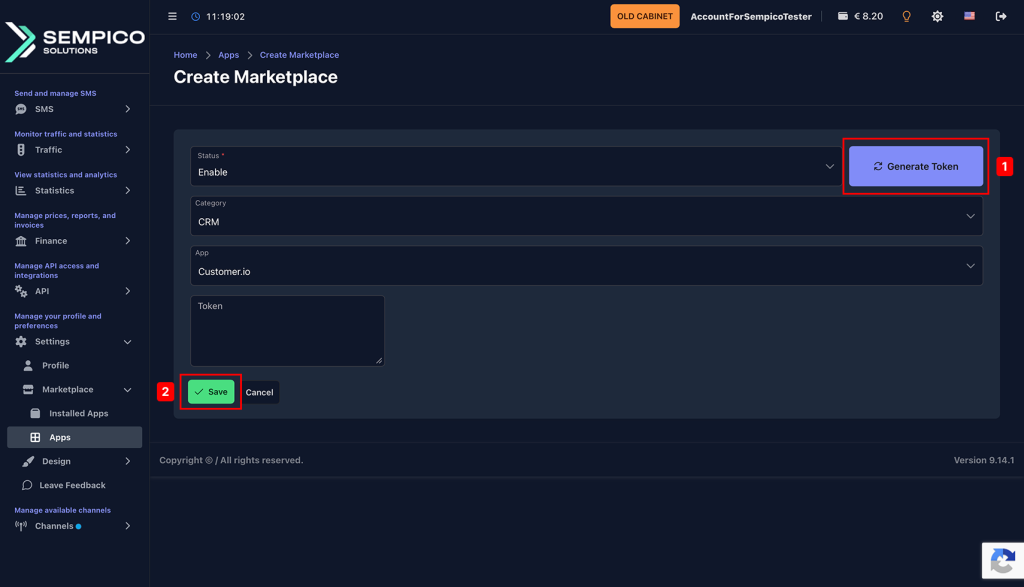
Next, you need to click the Generate token button and save the settings.
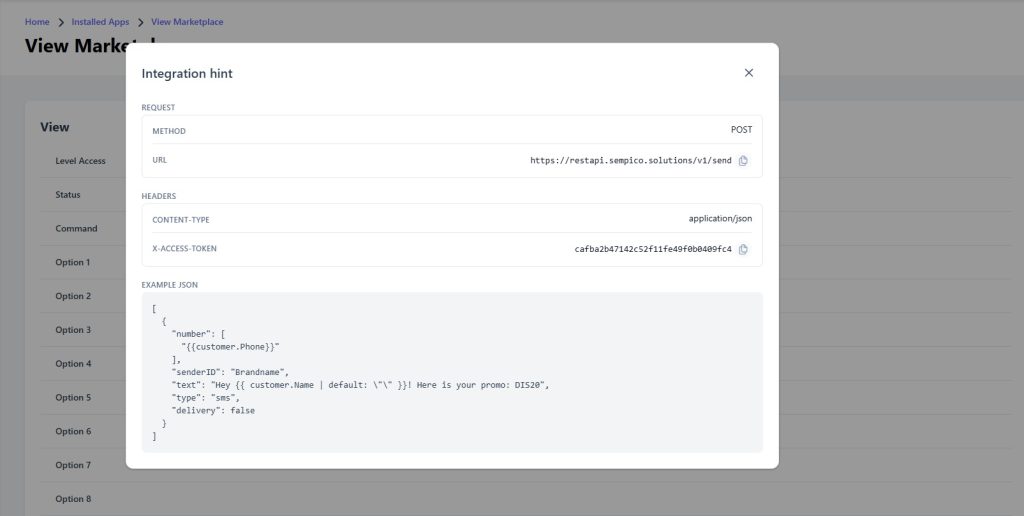
You will be shown a list of data that needs to be copied to the API request settings in Customer.io.
Sempico Solutions SMS Integration with ActiveCampaign
ActiveCampaign is a marketing and sales automation platform designed to drive revenue growth for businesses. It empowers users to create personalized marketing campaigns, automate customer follow-up, and optimize sales efficiency.
To start sending SMS marketing via Sempico...
Sempico Solutions SMS Integration with Fast Track
Sempico Solutions can be integrated with Fast Track CRM through Fast Track’s Custom SMS Solution framework.
The integration enables iGaming operators to use Sempico as an SMS delivery layer for CRM activities, lifecycle automation, player engagement campaigns,...
Sempico Solutions SMS Integration with Integrately
Integrately allows businesses to connect Sempico Solutions SMS with their everyday tools and automate SMS communication without building custom workflows from scratch.
With ready-to-use automations, teams can trigger SMS messages when an event occurs in a CRM,...
Cookie declaration last updated on 01/01/2025
This website uses cookies
We use cookies to enhance your browsing experience, provide social media features, and analyze our traffic.
You consent to our cookies if you continue to use our website.