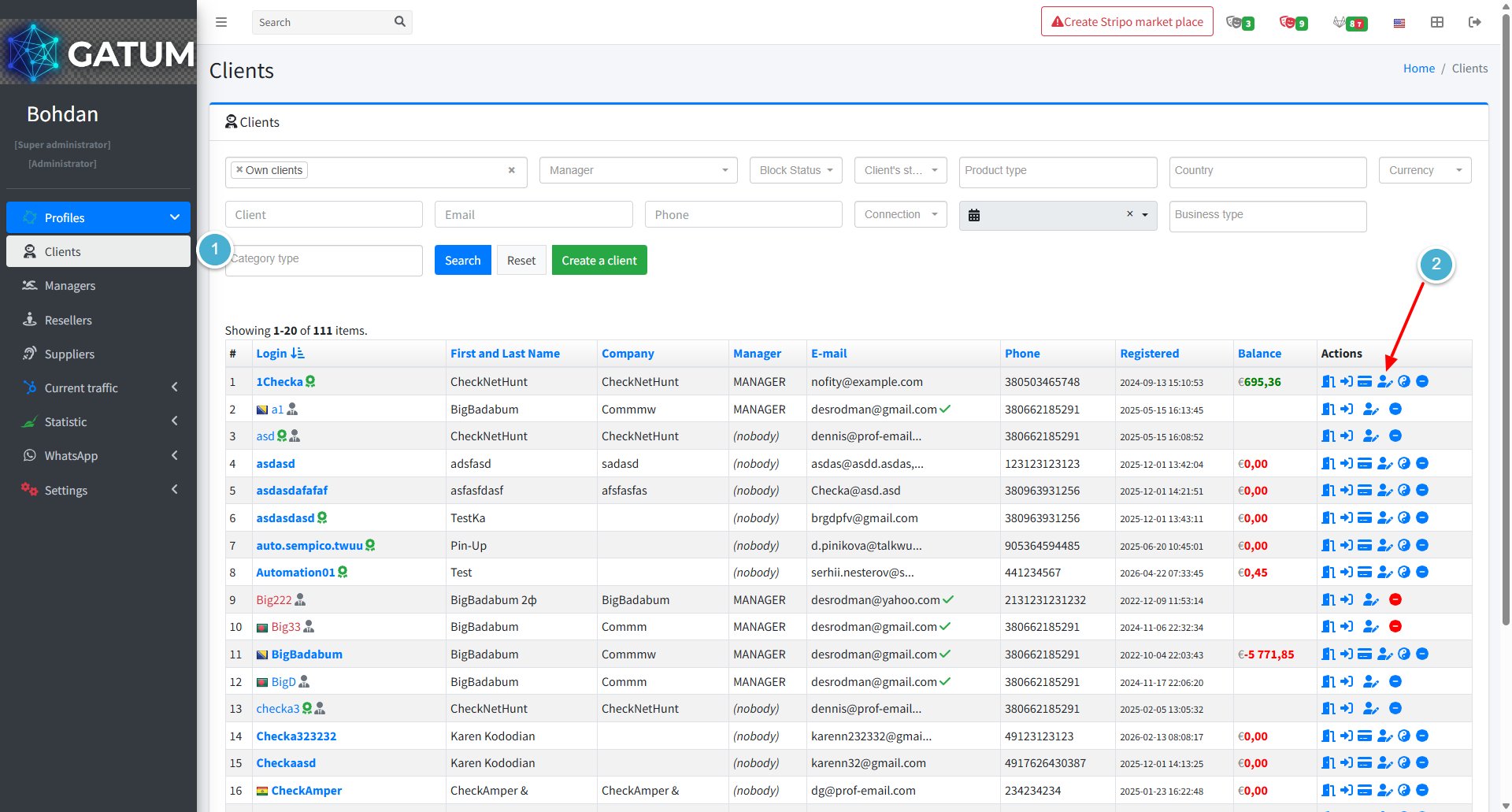
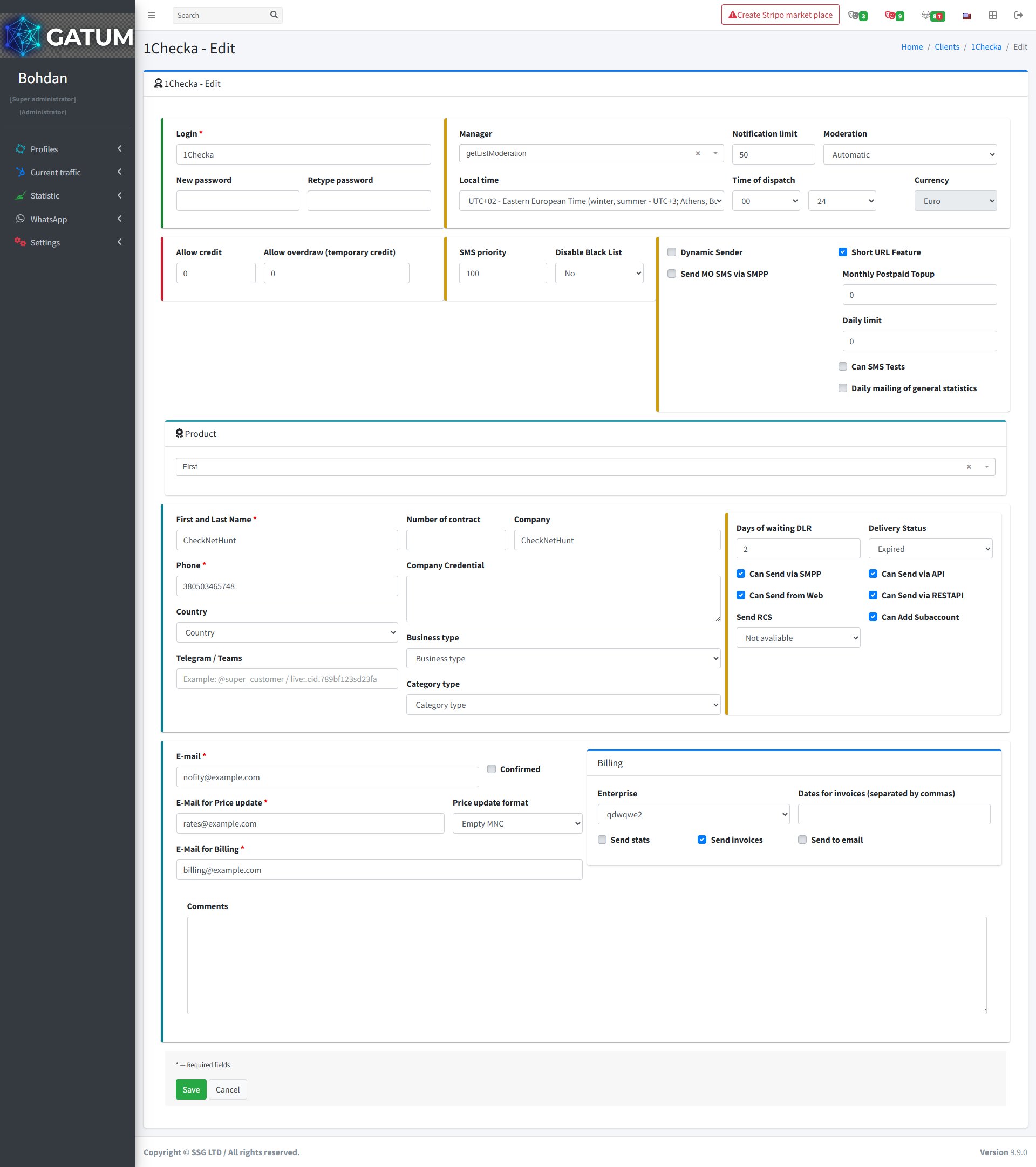
|
Field
|
Description
|
|
Login
|
The client's login name displayed across the admin panel
|
|
New password (optional)
|
Set a new password – leave blank to keep the current one
|
|
Retype password (optional)
|
Repeat the new password to confirm
|
|
Manager (optional)
|
Assigned manager for this client
|
|
Notification limit (optional)
|
Balance threshold for low balance email alerts
|
|
Moderation (optional)
|
Sender moderation mode – Manual or Automatic
|
|
Local time (optional)
|
Client's timezone
|
|
Time of dispatch (optional)
|
Allowed sending hours
|
|
Currency
|
Cannot be changed after the account is created
|
|
Allow credit (optional)
|
Permanent credit limit
|
|
Allow overdraw (optional)
|
Temporary overdraw limit
|
|
SMS priority (optional)
|
Priority for this client's messages in the queue
|
|
Disable Black List (optional)
|
Bypass the platform's blacklist for this client
|
|
Dynamic Sender (optional)
|
Allow the client to use any sender name freely
|
|
Send MO SMS via SMPP (optional)
|
Forward incoming messages to the client via SMPP
|
|
Short URL Feature (optional)
|
Enable short URL generation in messages
|
|
Monthly Postpaid Topup (optional)
|
Amount added to the client's balance monthly for postpaid billing
|
|
Daily limit (optional)
|
Maximum number of messages the client can send per day
|
|
Can SMS Tests (optional)
|
Allow the client to send test messages
|
|
Daily mailing of general statistics (optional)
|
Send the client a daily statistics email
|
|
Product type (optional)
|
Product preset assigned to this client
|
|
First and Last Name
|
Contact name for this client
|
|
Number of contract (optional)
|
Contract reference number
|
|
Company (optional)
|
Client's company name
|
|
Days of waiting DLR (optional)
|
How many days to wait for a delivery report before marking a message as expired
|
|
Delivery Status (optional)
|
Default delivery status for expired messages
|
|
Can Send via SMPP (optional)
|
Allow SMPP connection
|
|
Can Send via API (optional)
|
Allow API sending
|
|
Can Send from Web (optional)
|
Allow sending from the web panel
|
|
Can Send via RESTAPI (optional)
|
Allow REST API sending
|
|
Send RCS (optional)
|
Allow RCS message sending
|
|
Can Add Subaccount (optional)
|
Allow the client to create sub-accounts
|
|
Phone
|
Client's phone number
|
|
Company Credential (optional)
|
Additional company details
|
|
Country (optional)
|
Client's country
|
|
Business type (optional)
|
Business category
|
|
Category type (optional)
|
Client category
|
|
Telegram / Teams (optional)
|
Client's Telegram or Teams contact
|
|
E-mail
|
Email for balance and account notifications
|
|
Confirmed (optional)
|
Mark the email address as verified
|
|
E-Mail for Price update
|
Email for price change notifications
|
|
Price update format (optional)
|
Format of the price update email
|
|
E-Mail for Billing
|
Email where invoices will be sent
|
|
Enterprise (optional)
|
Legal entity type for billing
|
|
Dates for invoices (optional)
|
Invoice generation dates
|
|
Send stats (optional)
|
Send statistics reports to the client
|
|
Send invoices (optional)
|
Send invoices automatically
|
|
Send to email (optional)
|
Send billing documents by email
|
|
Comments (optional)
|
Internal notes for this client
|