The Gatum admin panel lets you create reseller accounts and manage their settings — prices, routing, and payments — all from one place.
How to Create a Reseller
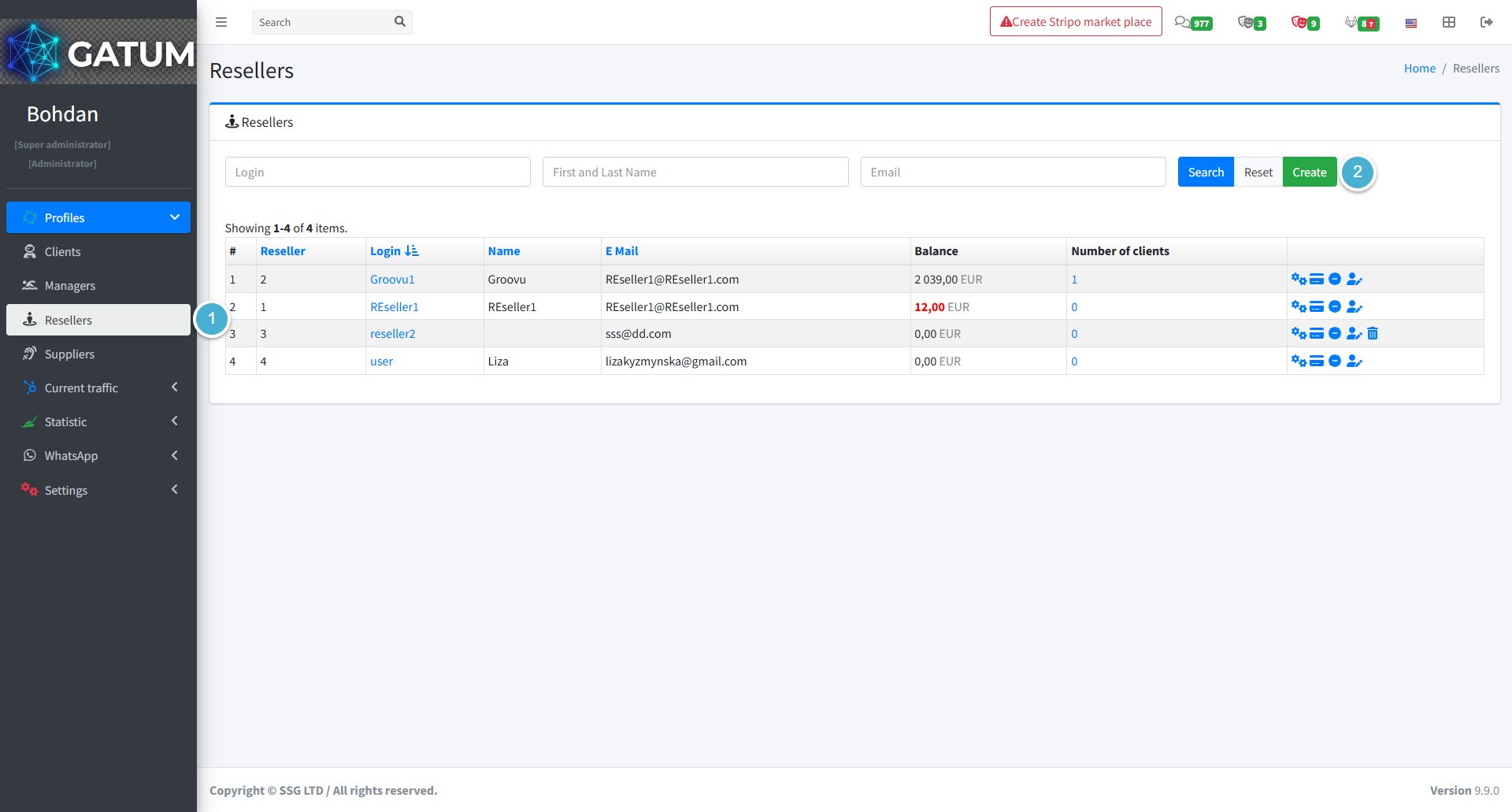
Go to Profiles → Resellers.
Click Create:

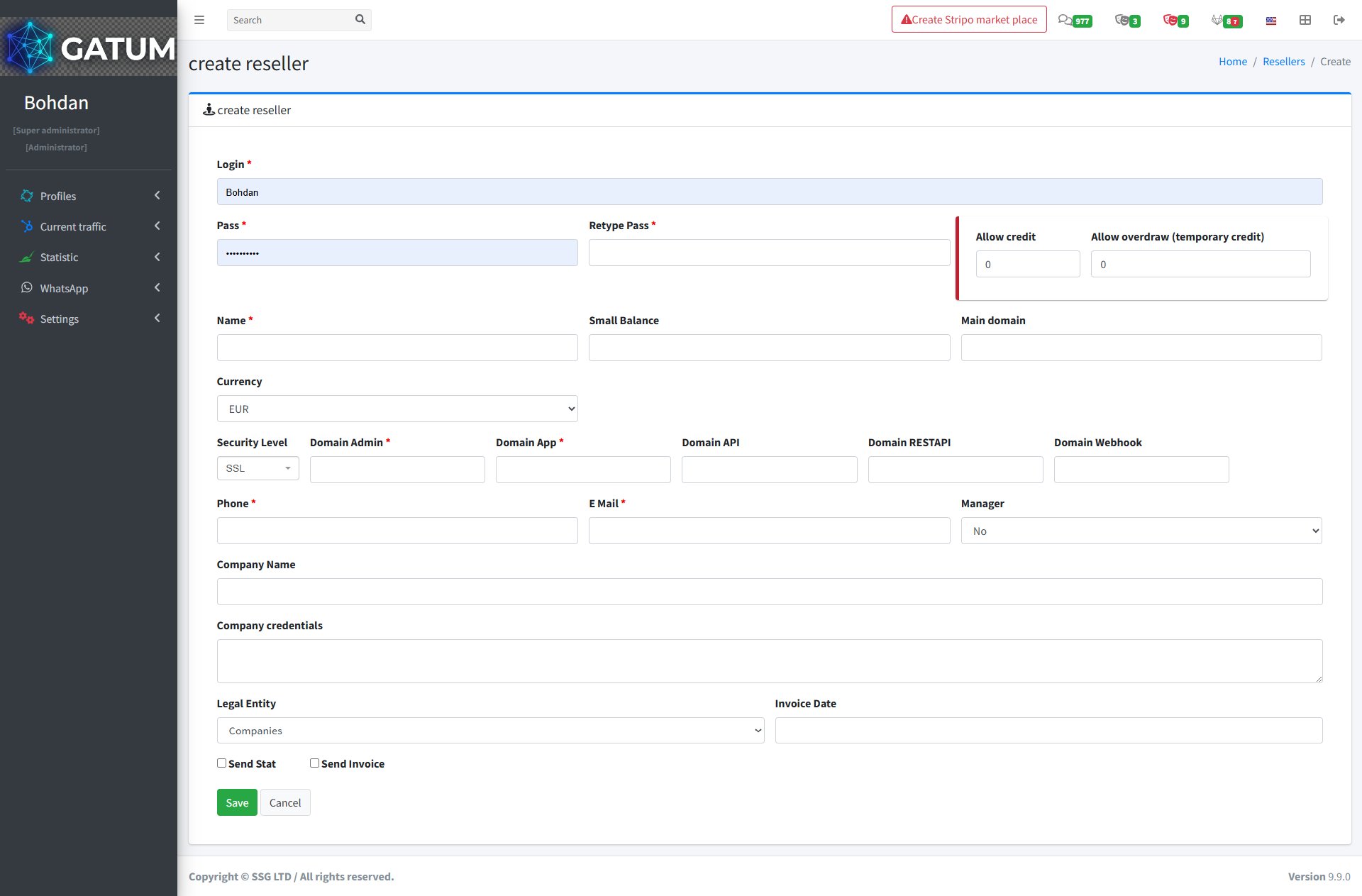
On the page that opens:

Fill in the fields:
|
Field |
Description |
|
Login |
The login the reseller will use to access their panel |
|
Pass |
Account password |
|
Retype Pass |
Repeat the password to confirm |
|
Name |
Reseller's first and last name |
|
Small Balance (optional) |
The balance threshold for low balance notifications |
|
Main domain (optional) |
Main domain associated with the reseller |
|
Currency (optional) |
Currency the reseller will work with (default: EUR) |
|
Security Level (optional) |
Connection security type (default: SSL) |
|
Domain Admin |
Admin panel domain for the reseller |
|
Domain App |
Application domain |
|
Domain API (optional) |
API domain |
|
Domain RESTAPI (optional) |
REST API domain |
|
Domain Webhook (optional) |
Webhook domain |
|
Phone |
Reseller's phone number |
|
E Mail |
Reseller's email address |
|
Manager (optional) |
Assign a manager to this reseller |
|
Company Name (optional) |
Reseller's company name |
|
Company credentials (optional) |
Additional company details |
|
Legal Entity (optional) |
Legal entity type |
|
Invoice Date (optional) |
Date for invoice generation |
|
Allow credit (optional) |
Credit limit for postpaid work |
|
Allow overdraw (optional) |
Temporary credit limit |
|
Send Stat (optional) |
Send statistics reports to the reseller |
|
Send Invoice (optional) |
Send invoices to the reseller automatically |
Click Save.
You'll be taken to the reseller's profile page, where you can continue setting up their account.
How to Set Up Prices
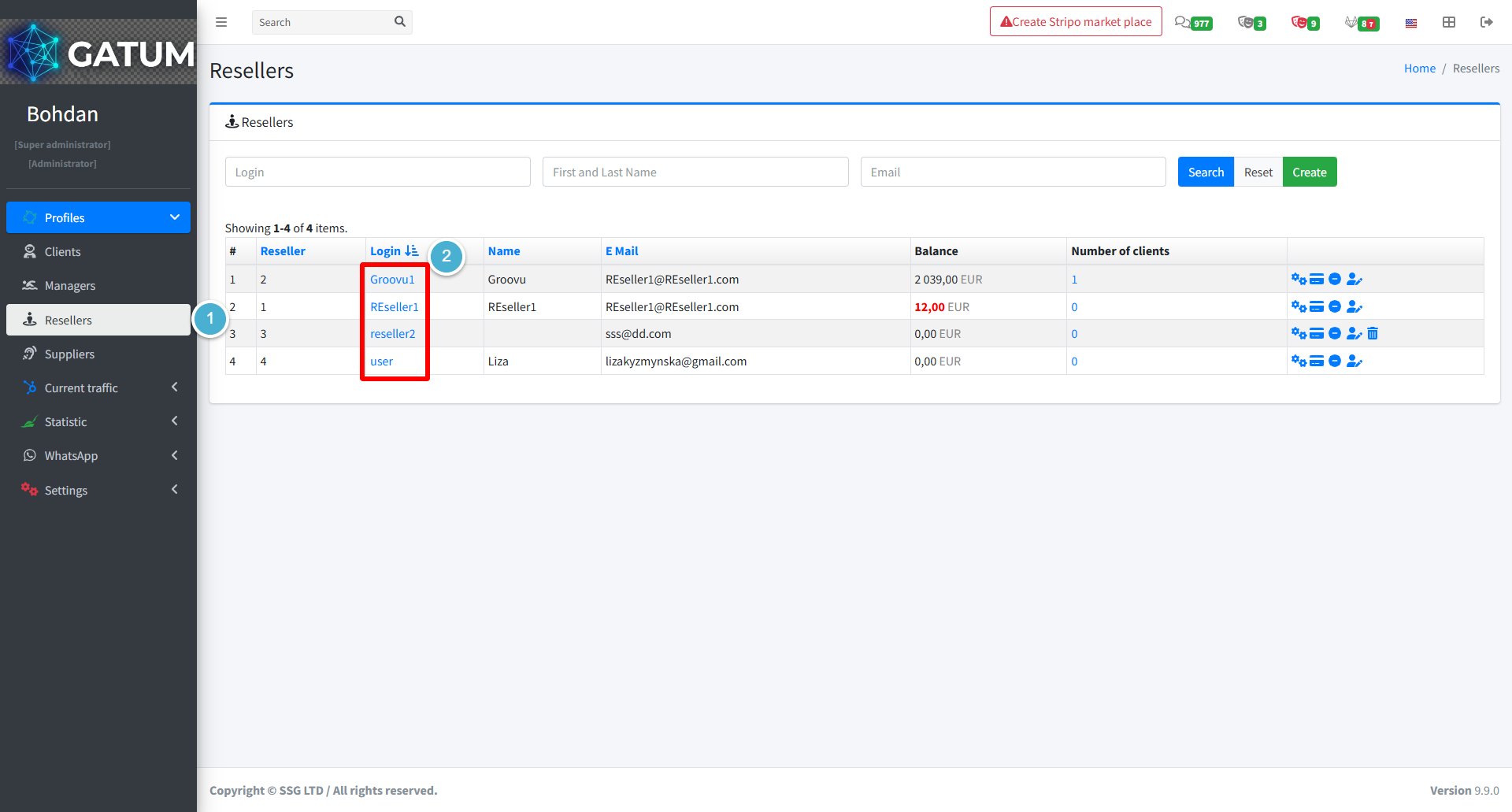
Go to Profiles → Resellers.
Click on the reseller's name.

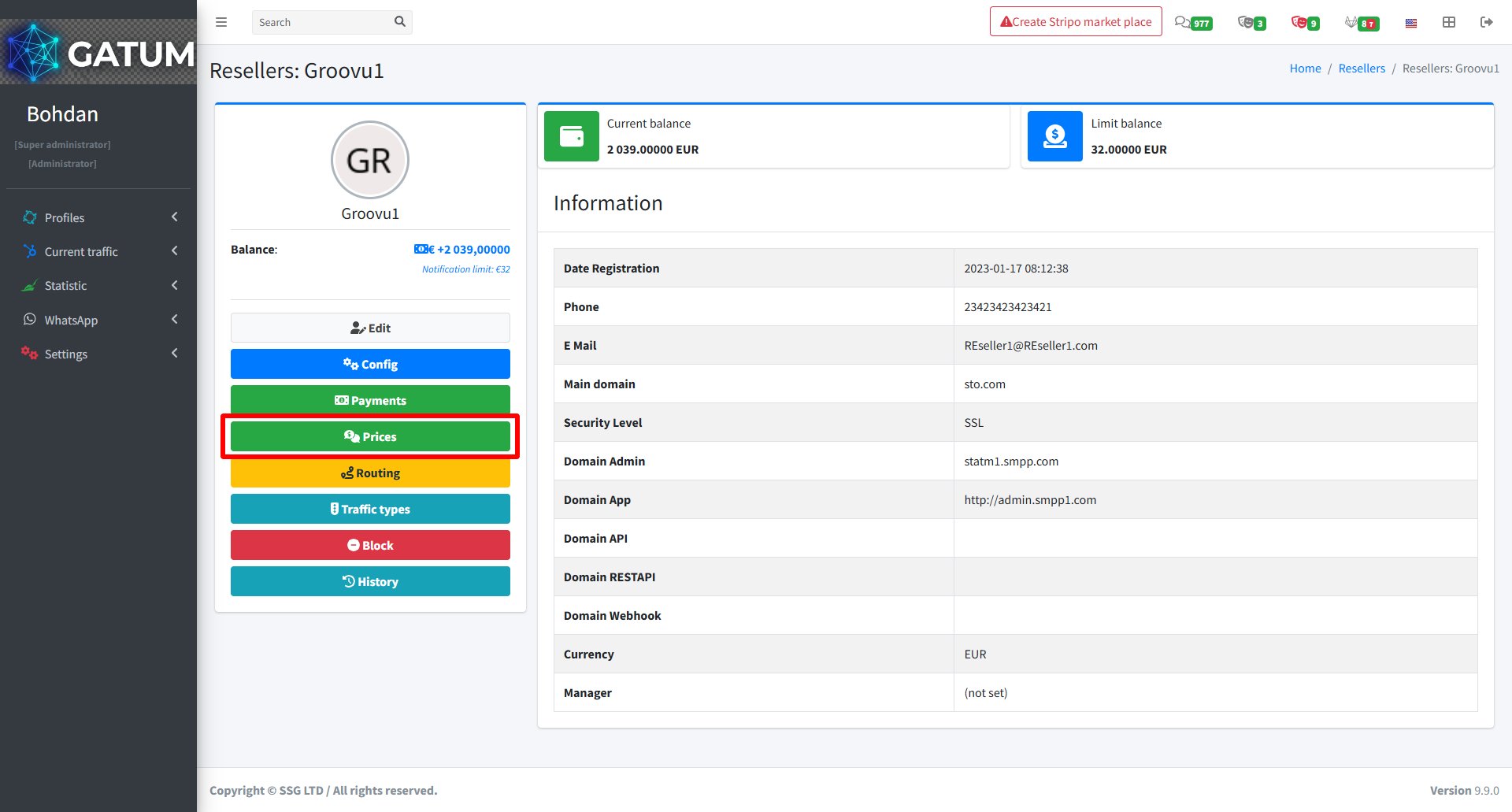
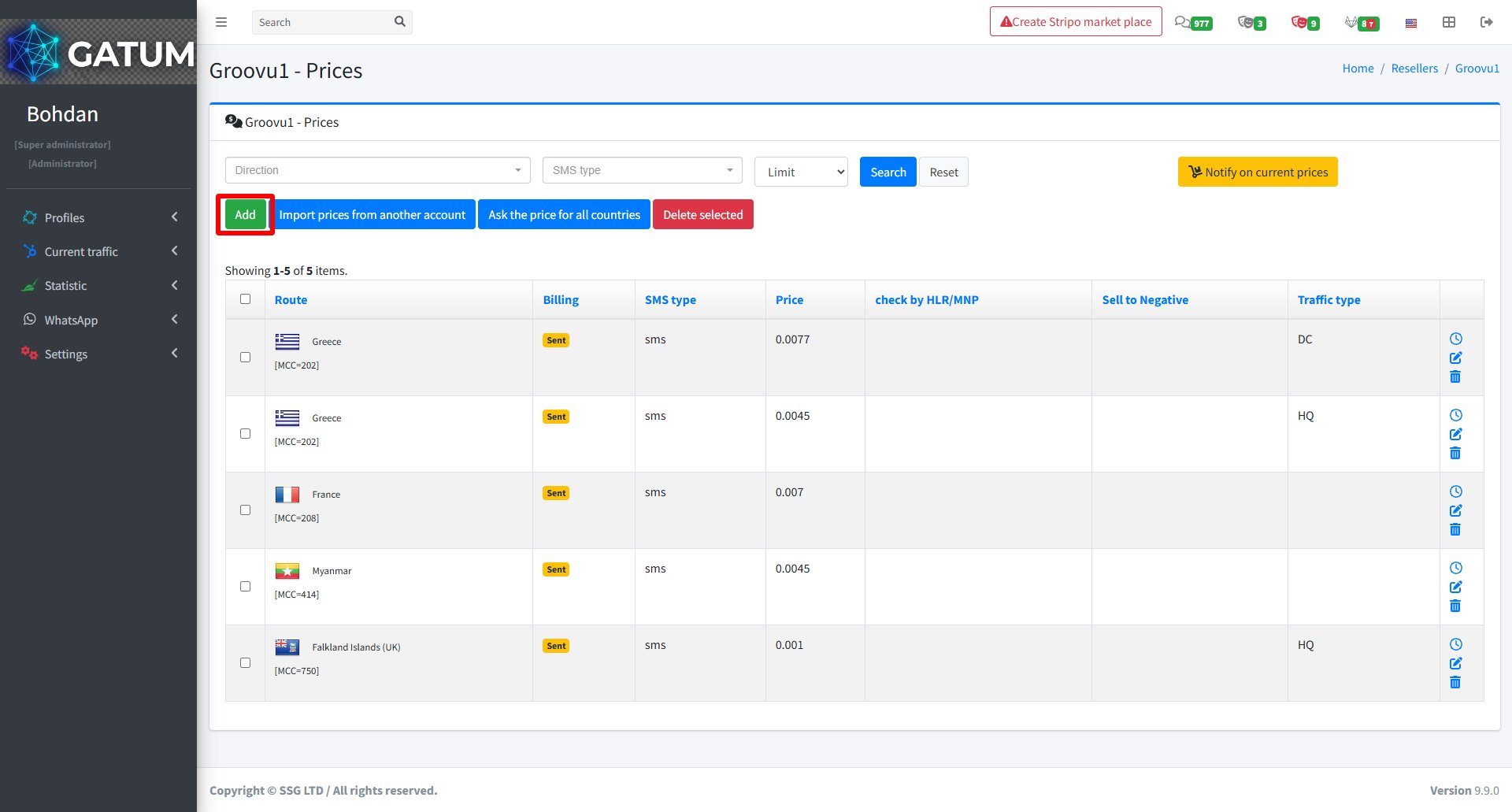
In the reseller's settings page, click Prices:

There are three ways to add prices:
1) Add prices manually — click Add.

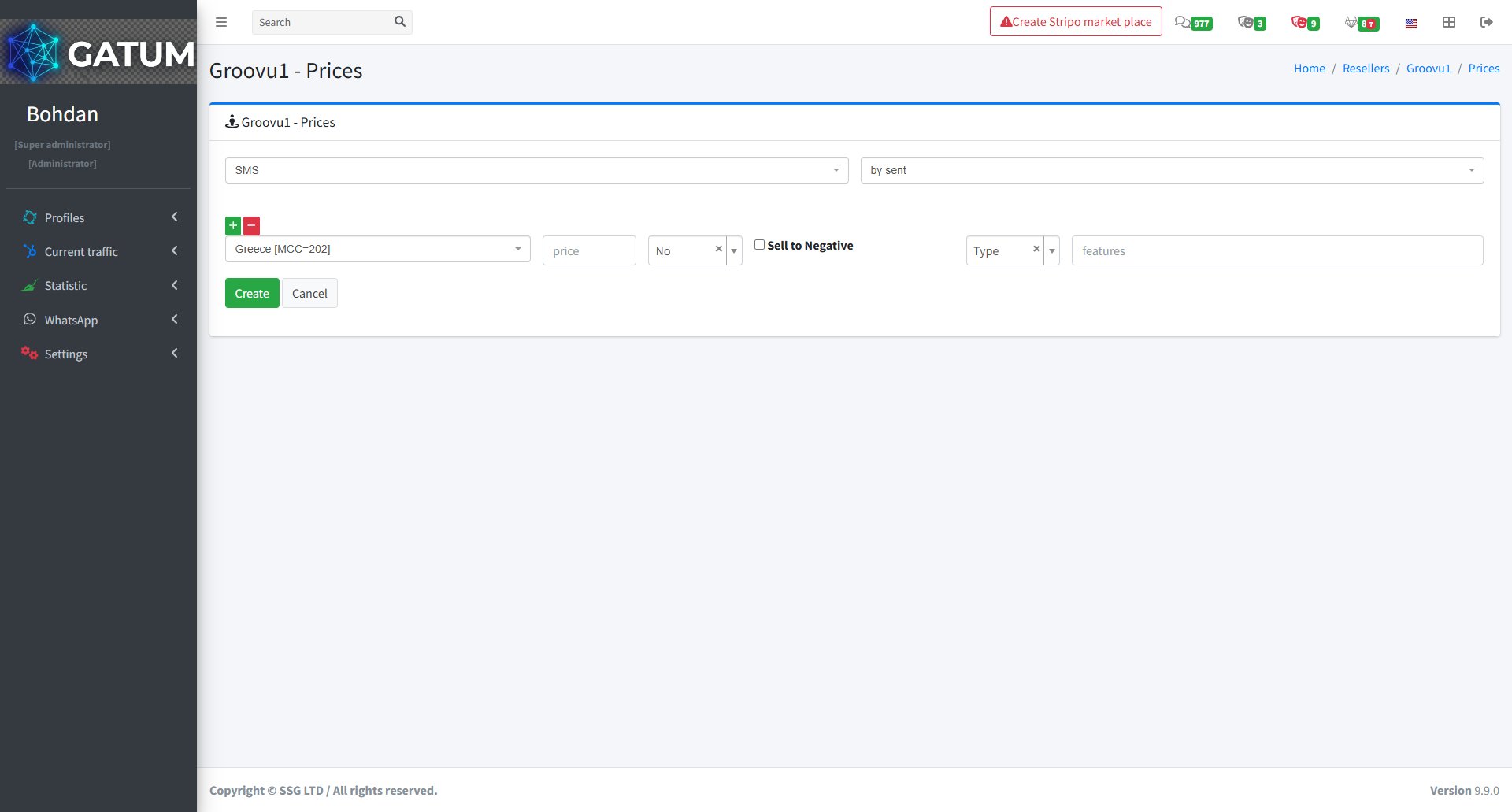
On the page that opens:

Fill in the fields:
|
Field |
Description |
|
SMS type |
Message type for this price |
|
Billing type |
How messages are counted for billing (e.g. by sent) |
|
Destination |
The country or network this price applies to |
|
Price |
Price per message |
|
Sell to Negative (optional) |
Allow sending even if the reseller's balance is negative |
|
Type (optional) |
Traffic type for this price |
|
Features (optional) |
Additional routing features |
Click Create.
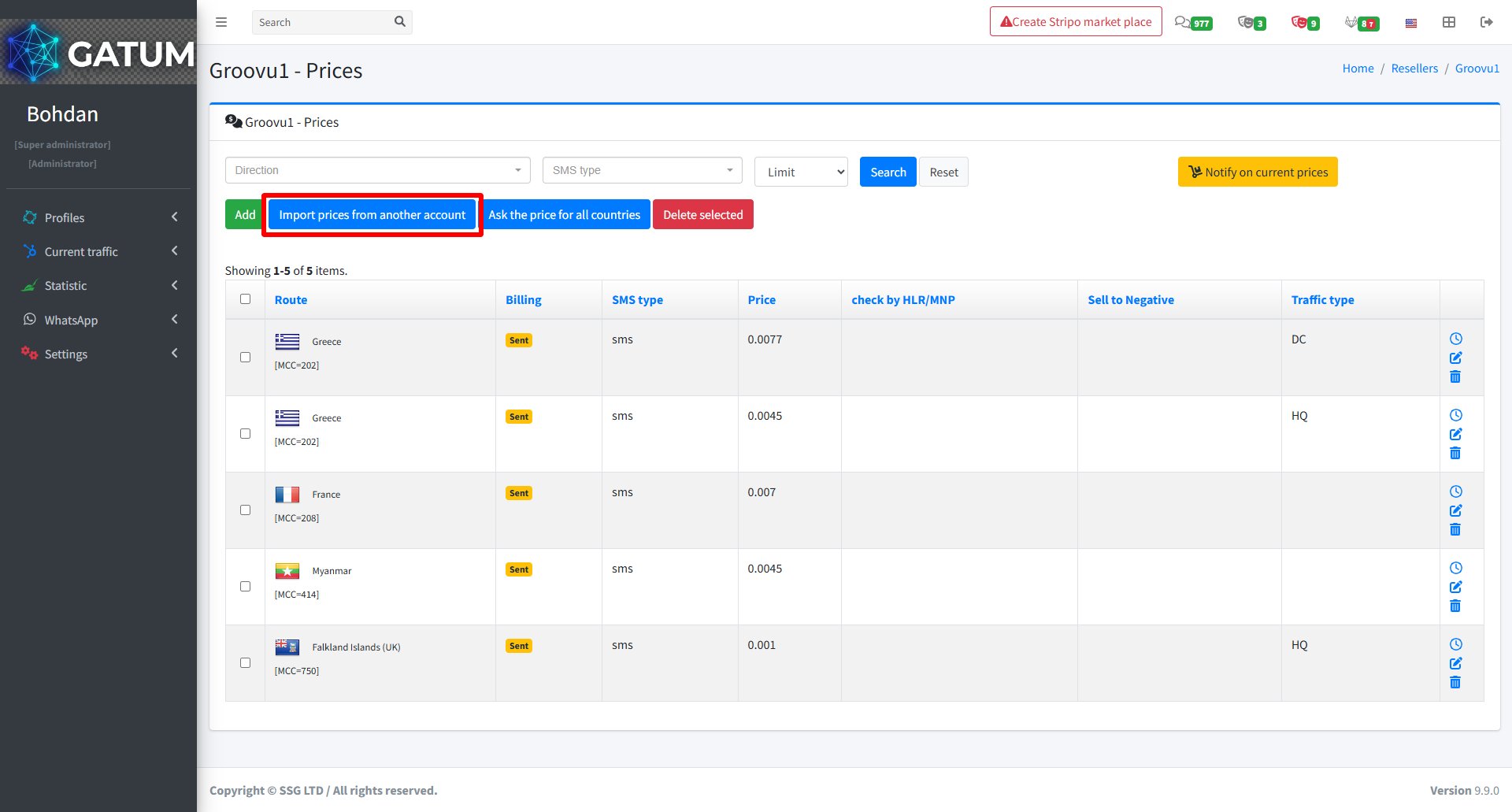
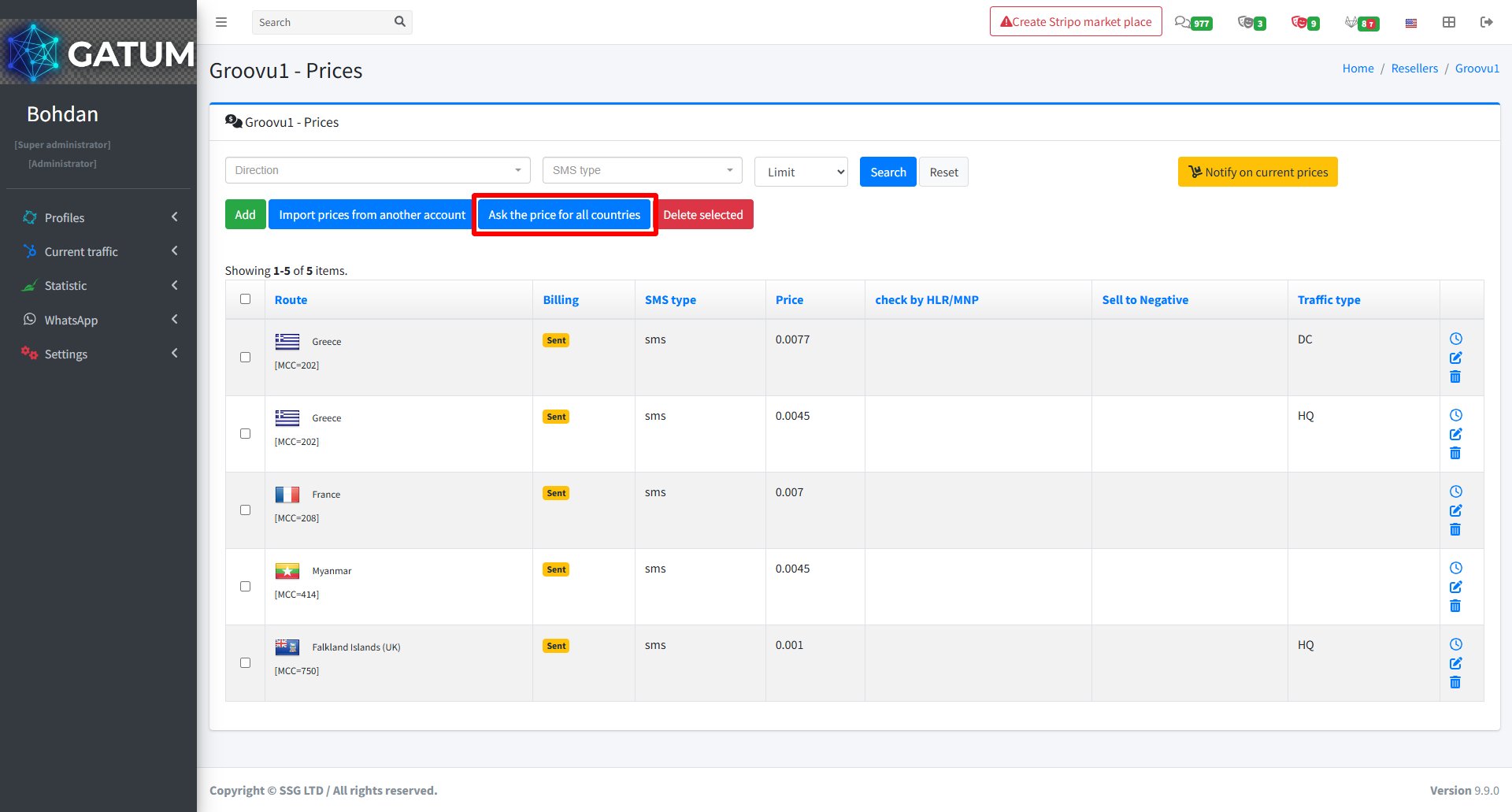
2) Import prices from another account — click Import prices from another account.

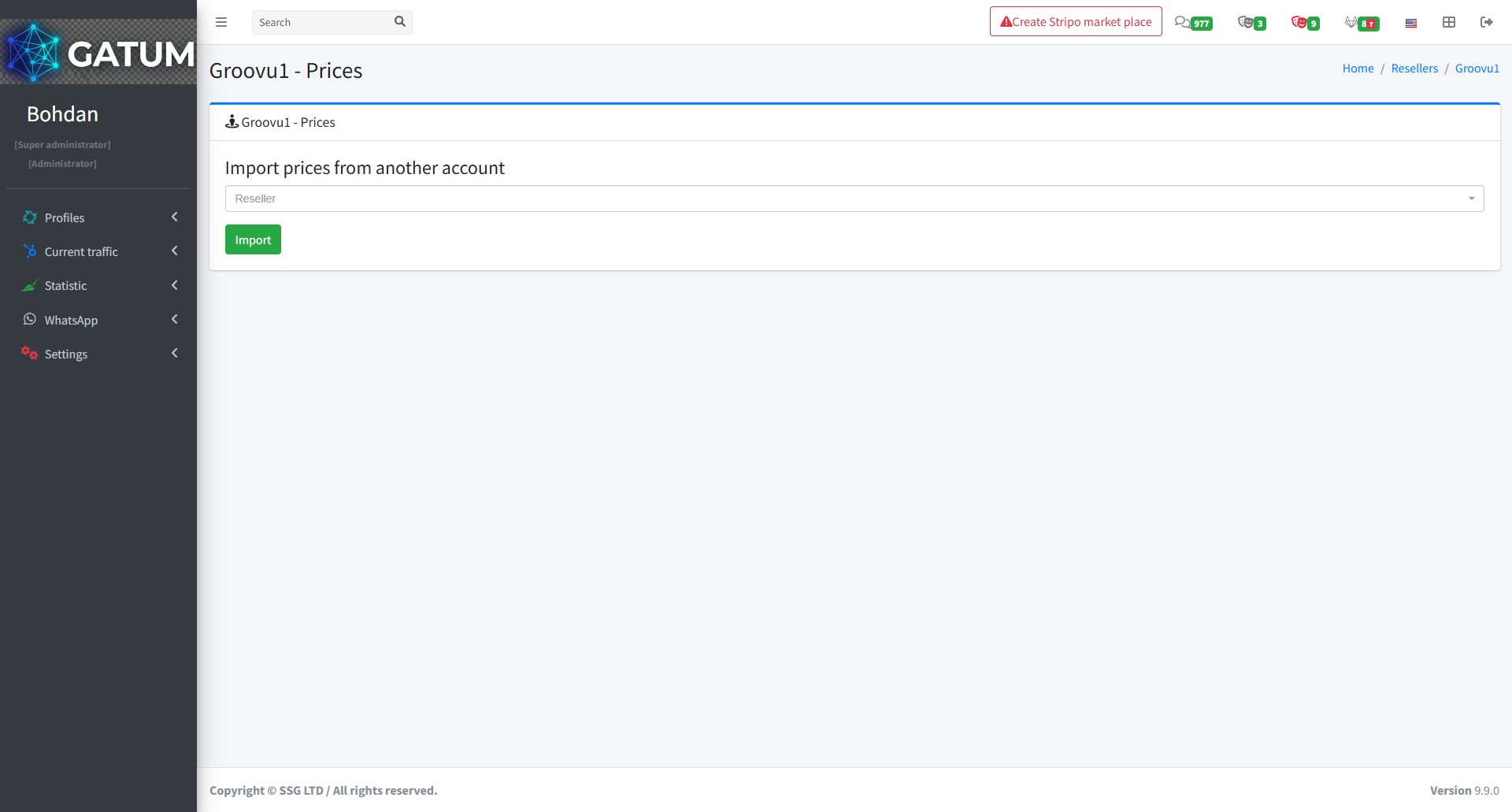
On the page that opens:

Select the reseller account to copy prices from and click Import.
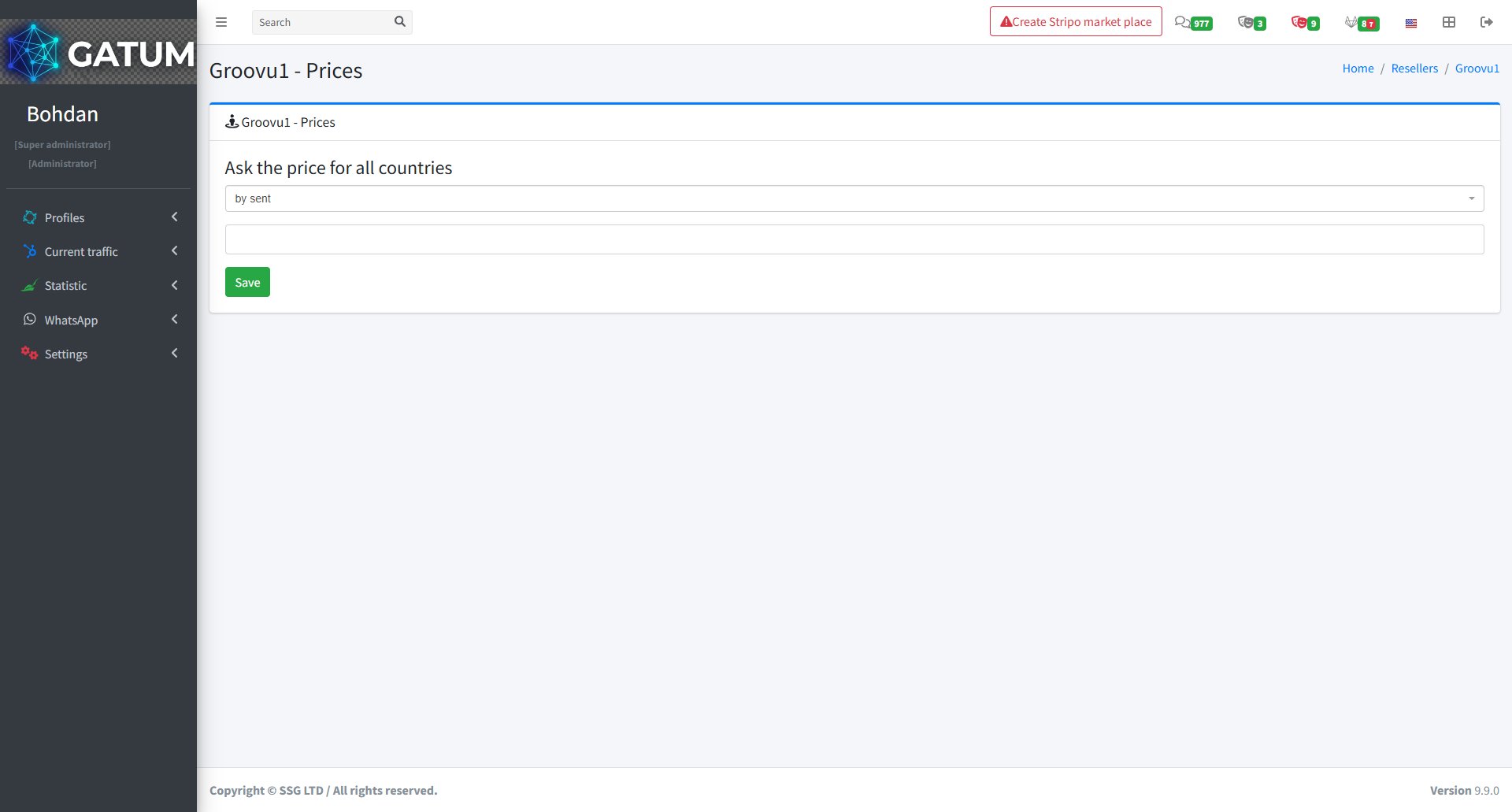
3) Ask the price for all countries — click Ask the price for all countries.

On the page that opens:

Select the billing type from the dropdown and click Save.
Prices take effect immediately after saving.
How to Set Up Routing
Go to Profiles → Resellers.
Click on the reseller's name.

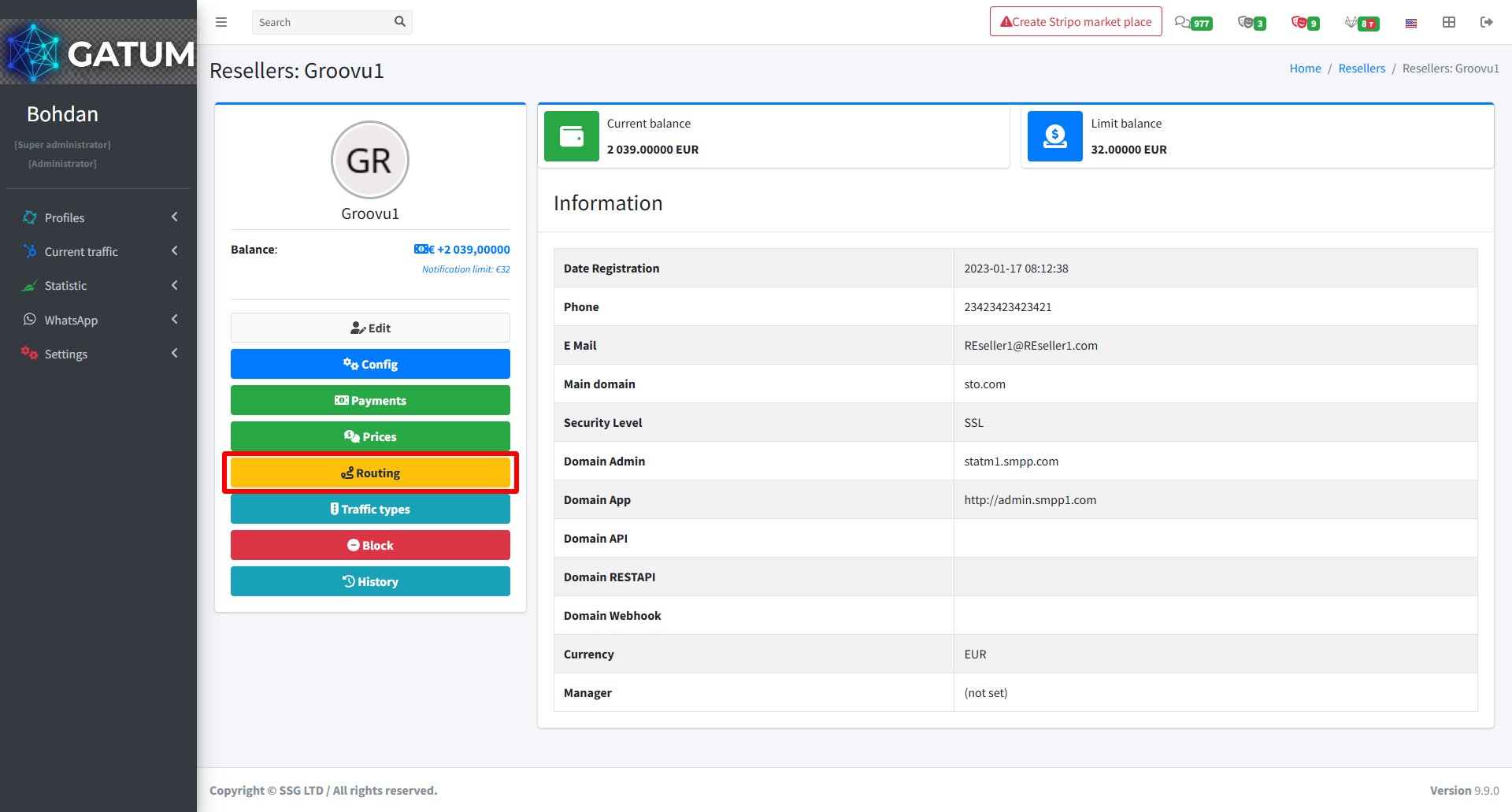
In the reseller's settings page, click Routing:

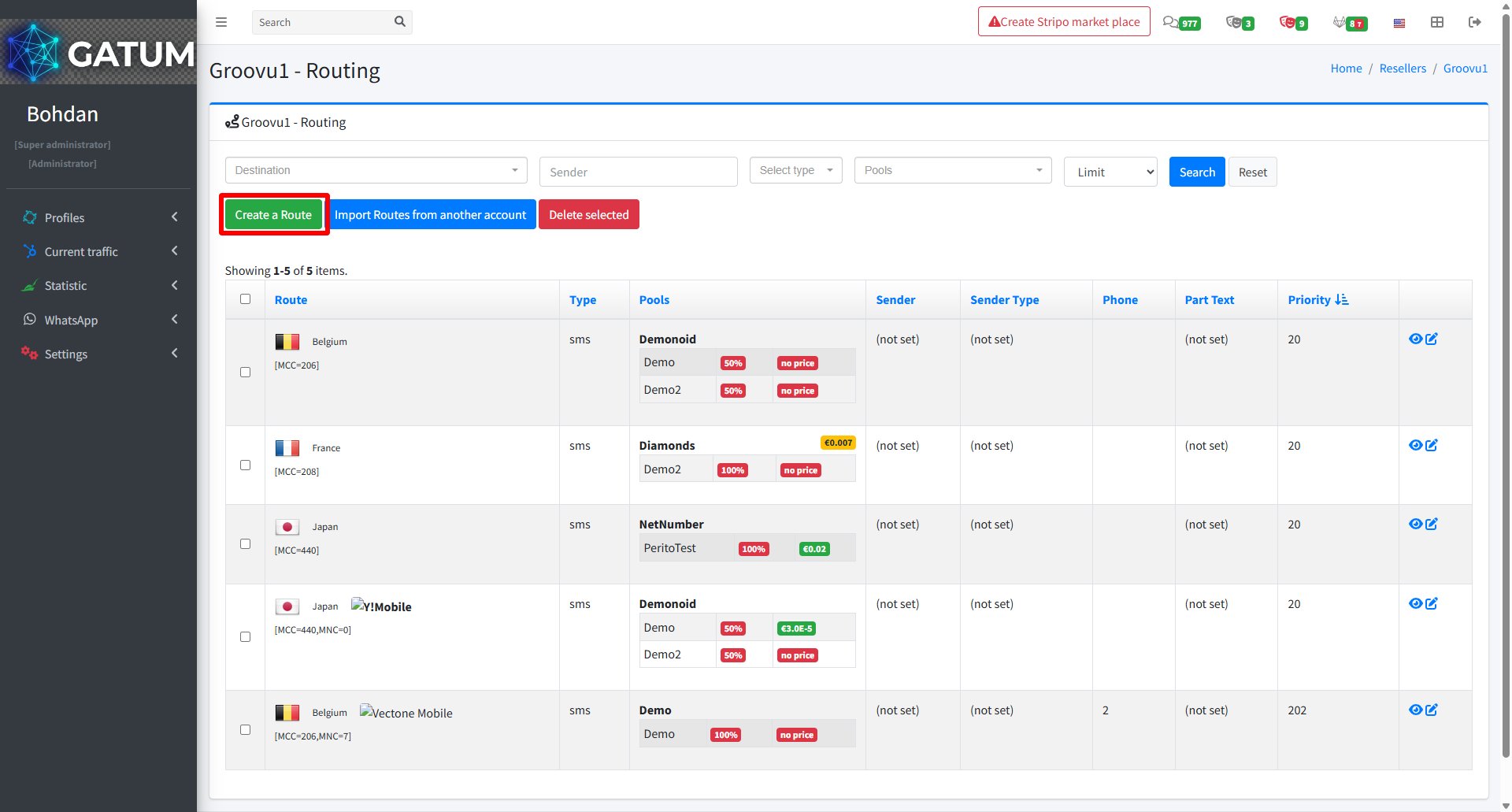
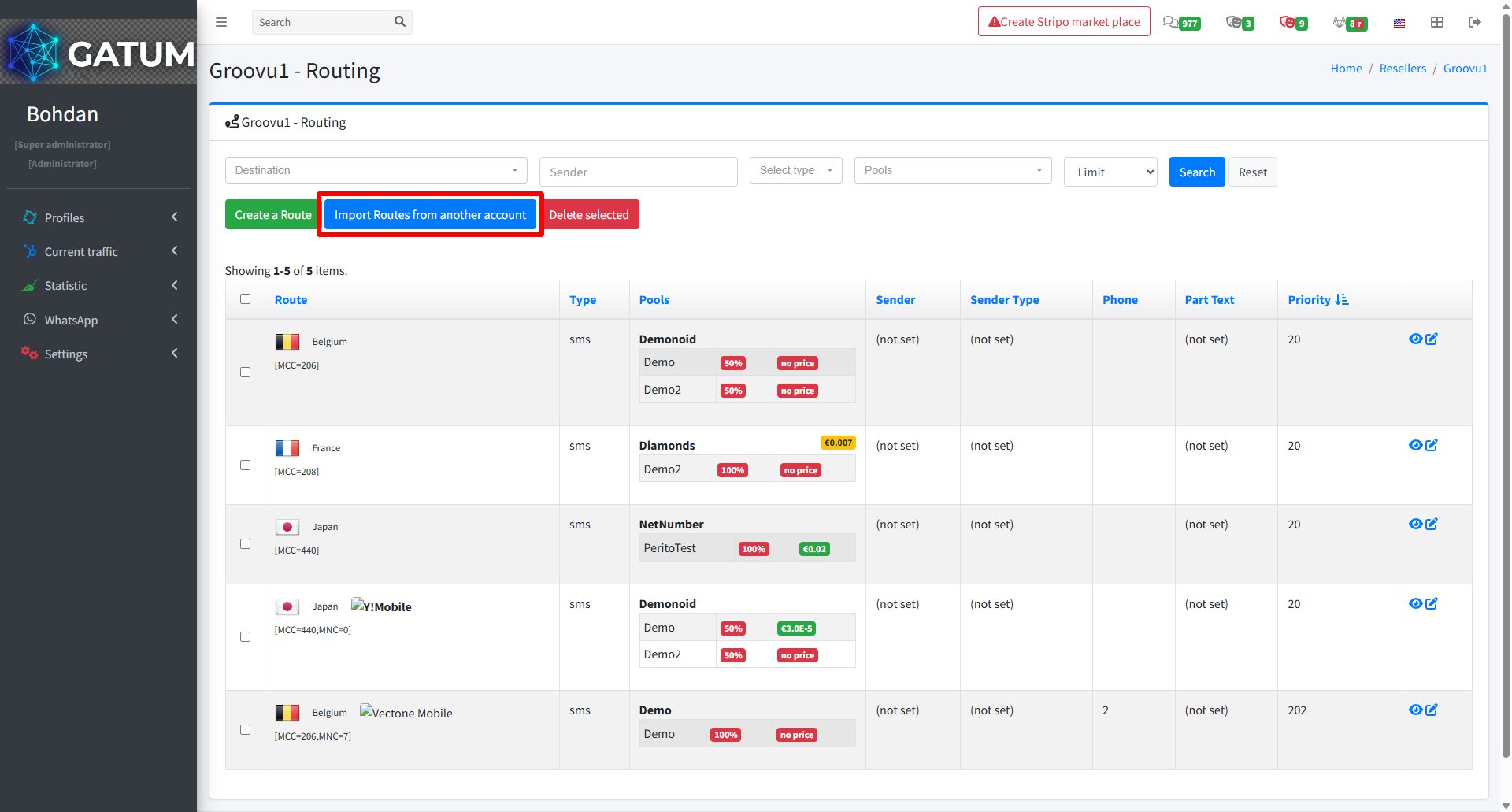
There are two ways to add routing:
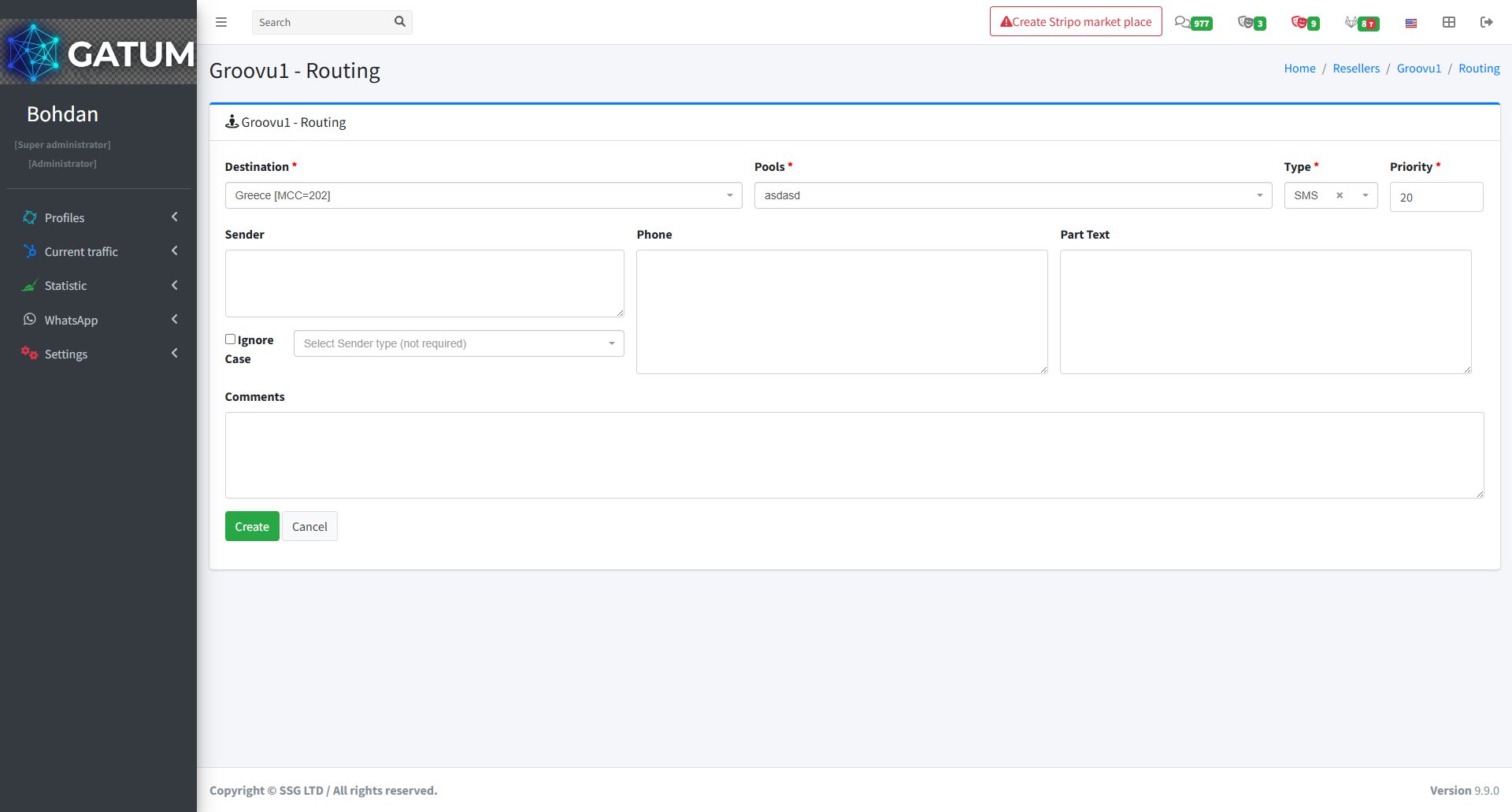
1) Create a route manually — click Create a Route.

On the page that opens:

Fill in the fields:
|
Field |
Description |
|
Destination |
The country or network this route applies to |
|
Pools |
The pool used to send traffic |
|
Type |
Message type (e.g. SMS) |
|
Priority |
Route priority — lower numbers are used first |
|
Sender (optional) |
Restrict this route to a specific sender name |
|
Phone (optional) |
Restrict this route to a specific phone number |
|
Part Text (optional) |
Restrict this route by message content |
|
Ignore Case (optional) |
Ignore case when matching the sender or text |
|
Sender type (optional) |
Restrict this route to a specific sender type |
|
Comments (optional) |
Internal notes for this route |
Click Create.
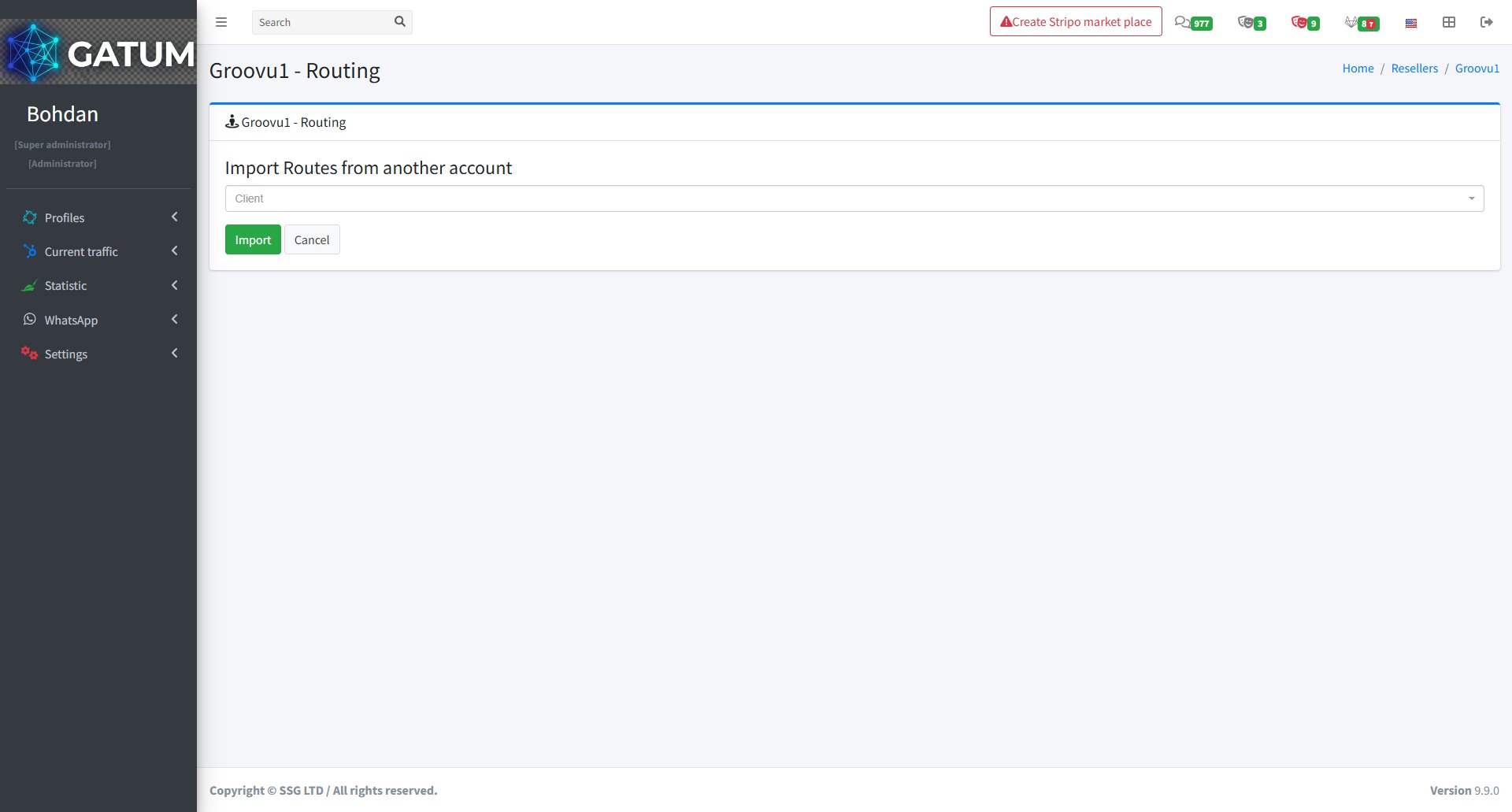
2) Import routes from another account — click Import Routes from another account.

On the page that opens:

Select the client account to copy routing from and click Import.
Routing changes apply to the reseller's traffic immediately after saving.
How to Add a Payment
Go to Profiles → Resellers.
Click on the reseller's name.

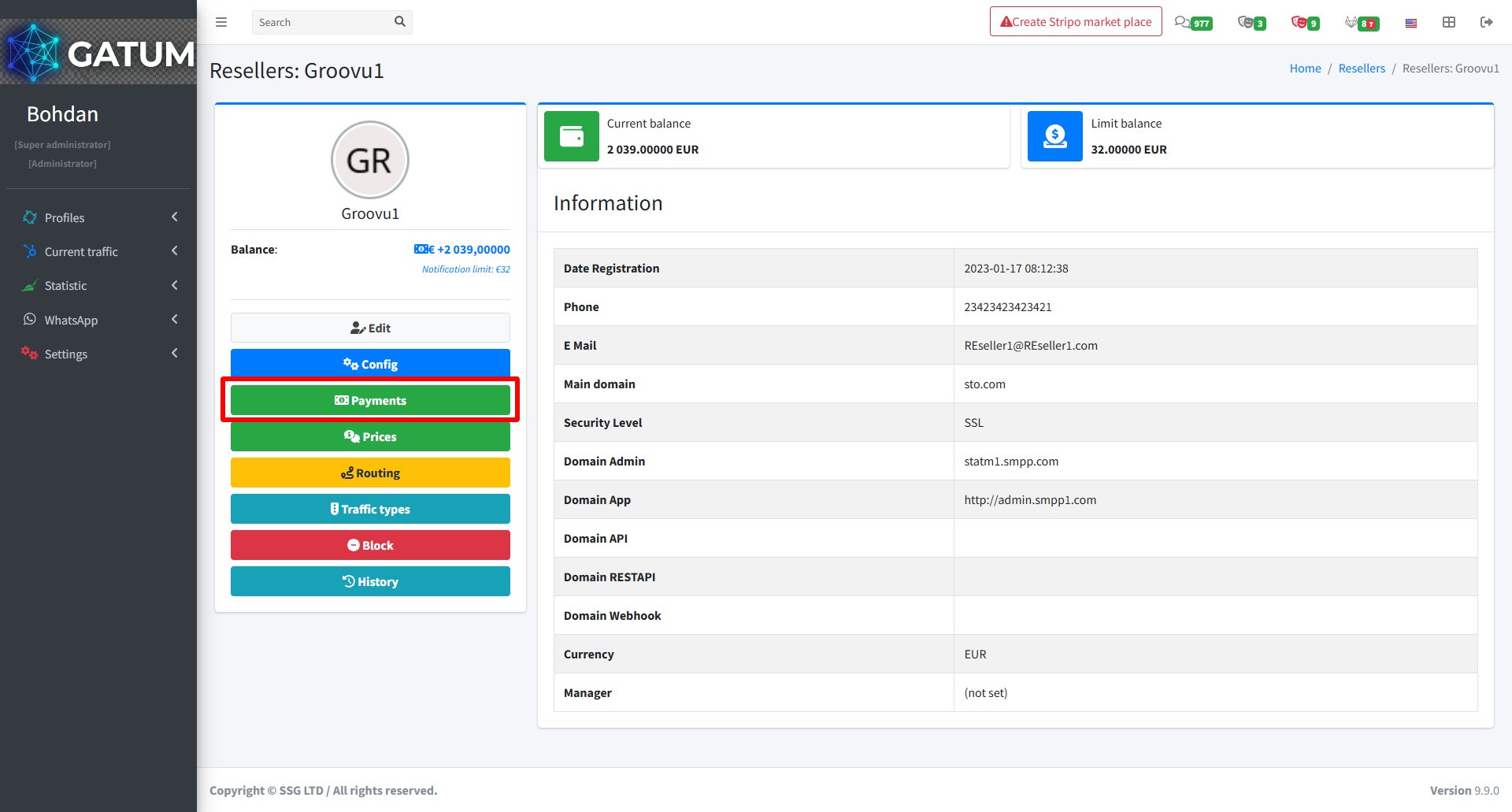
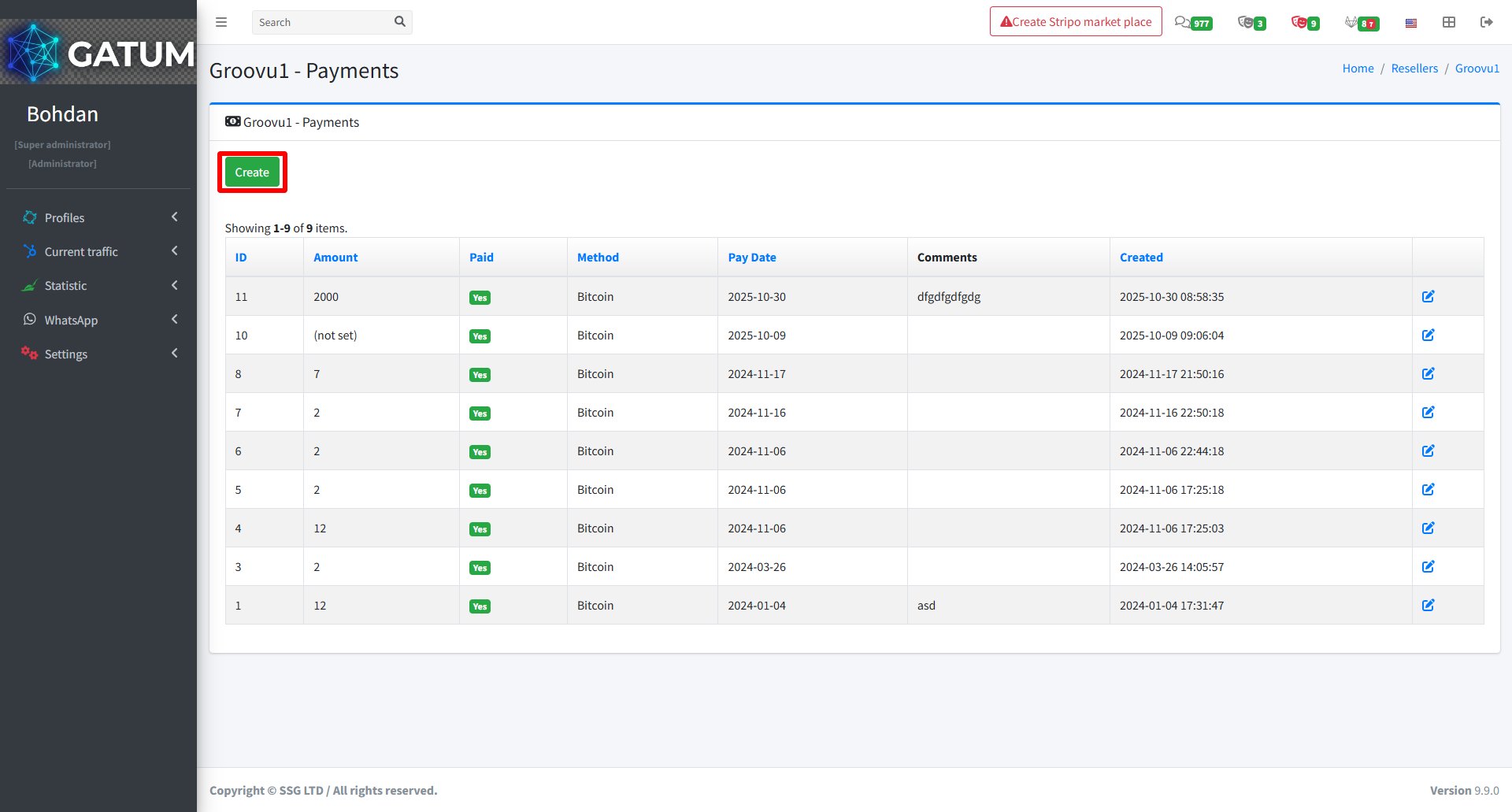
In the reseller's settings page, click Payments.

On the opened page, click Create:

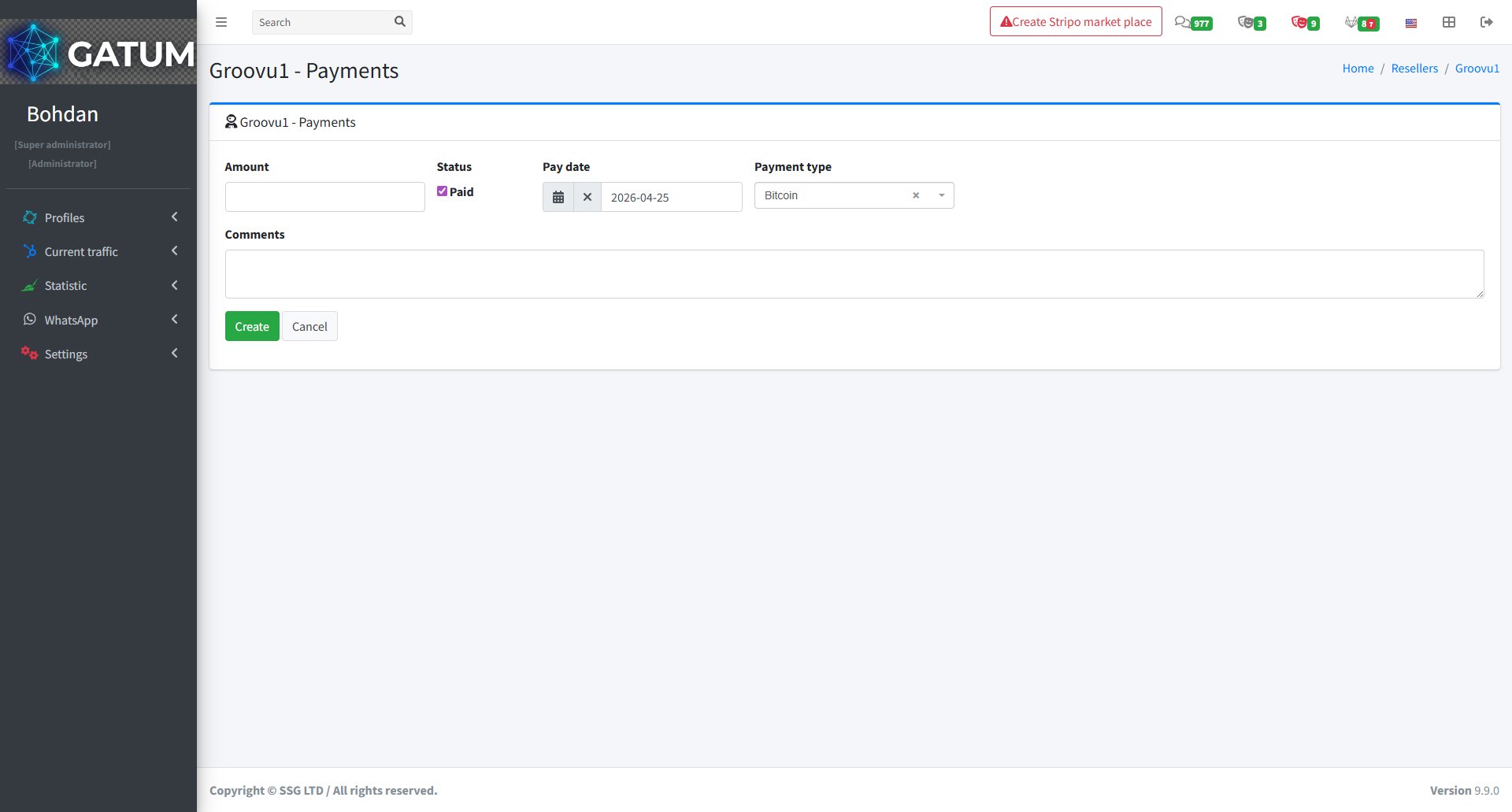
On the page that opens:

Fill in the fields:
|
Field |
Description |
|
Amount |
Payment amount |
|
Status |
Check Paid if the payment has already been received |
|
Pay date |
The date of the payment |
|
Payment type |
Payment method (e.g. Bitcoin) |
|
Comments (optional) |
Internal notes for this payment |
Click Create.
The payment will appear in the reseller's payment history immediately after saving.