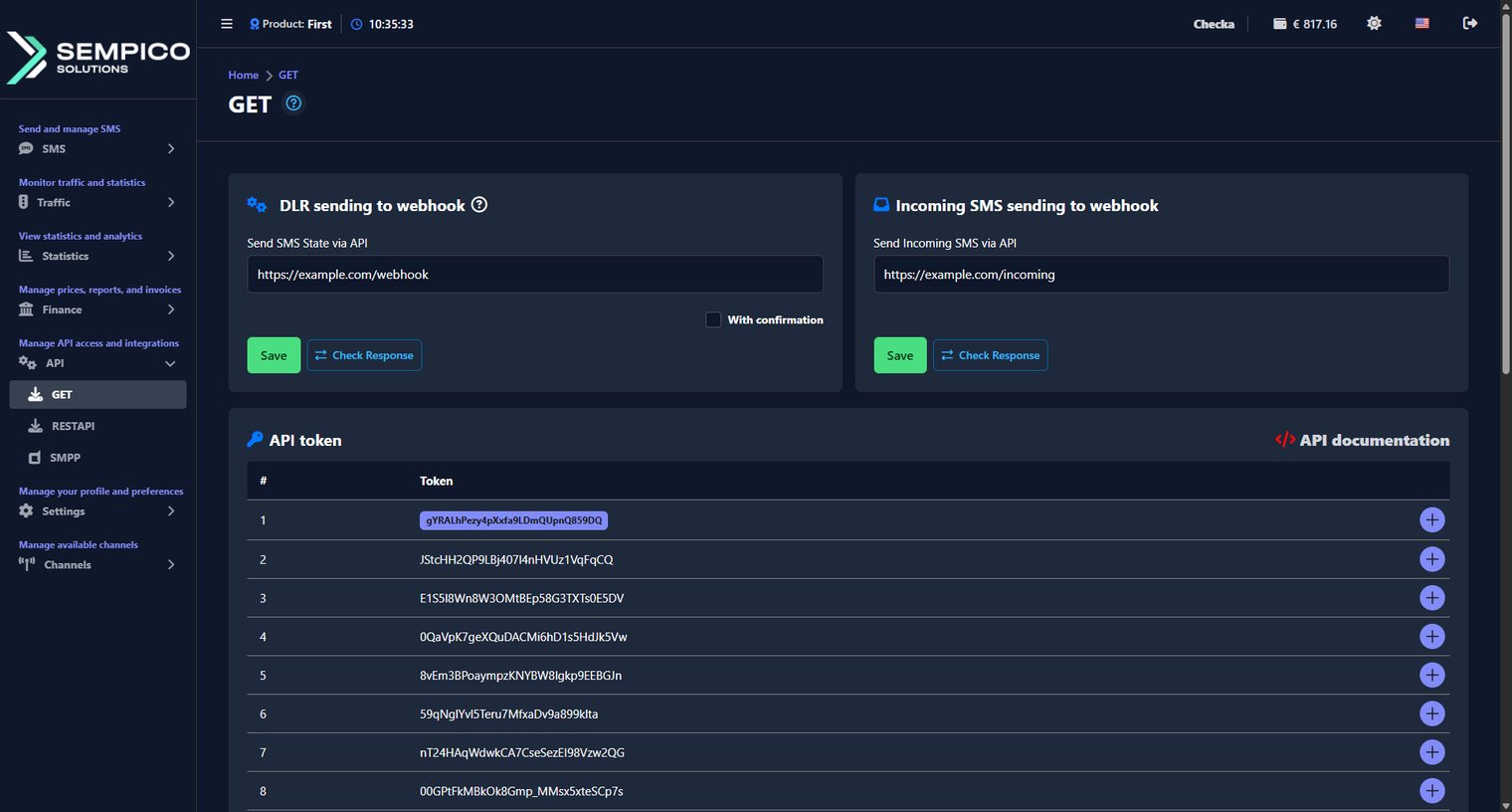
To start sending SMS via API, you need to generate an API token and configure the webhook URLs for delivery reports and incoming SMS. All of this is done directly from your web panel — no need to contact your manager.
Go to API → GET.
The page is divided into five sections: DLR Sending to Webhook, Incoming SMS Sending to Webhook, API Token, Example of Using API, and API IP. Go through each section below to complete your setup.
DLR Sending to Webhook
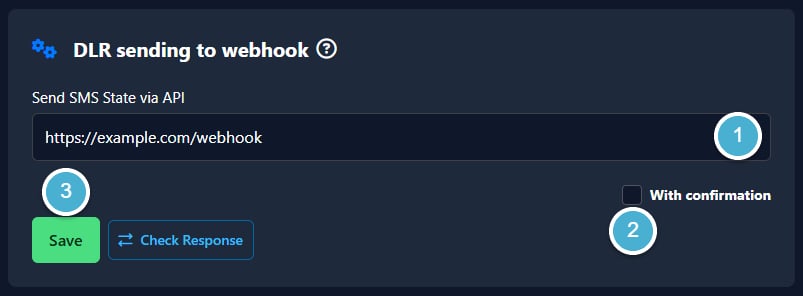
This section lets you set a webhook URL that will automatically receive delivery status updates for SMS sent via API.
Enter your webhook URL in the Send SMS State via API field.
Enable With confirmation, if you want the platform to expect a confirmation response from your server.
Click Save:
To verify the connection, click Check Response.
To see the format of the delivery report and possible statuses, click the ? icon. A window will open showing an example response and the following possible statuses:
Status
Description
DELIVRD
The message was delivered
UNDELIV
The message was not delivered
EXPIRED
The message lifetime expired before delivery
Incoming SMS Sending to Webhook
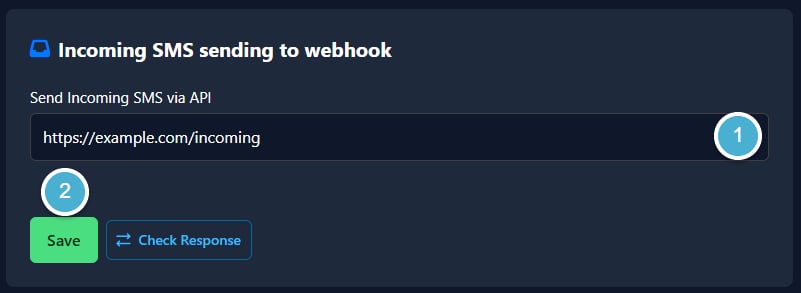
This section lets you set a webhook URL that will automatically receive incoming SMS messages.
Enter your webhook URL in the Send Incoming SMS via API field.
Click Save:
To verify the connection, click Check Response.
API Token
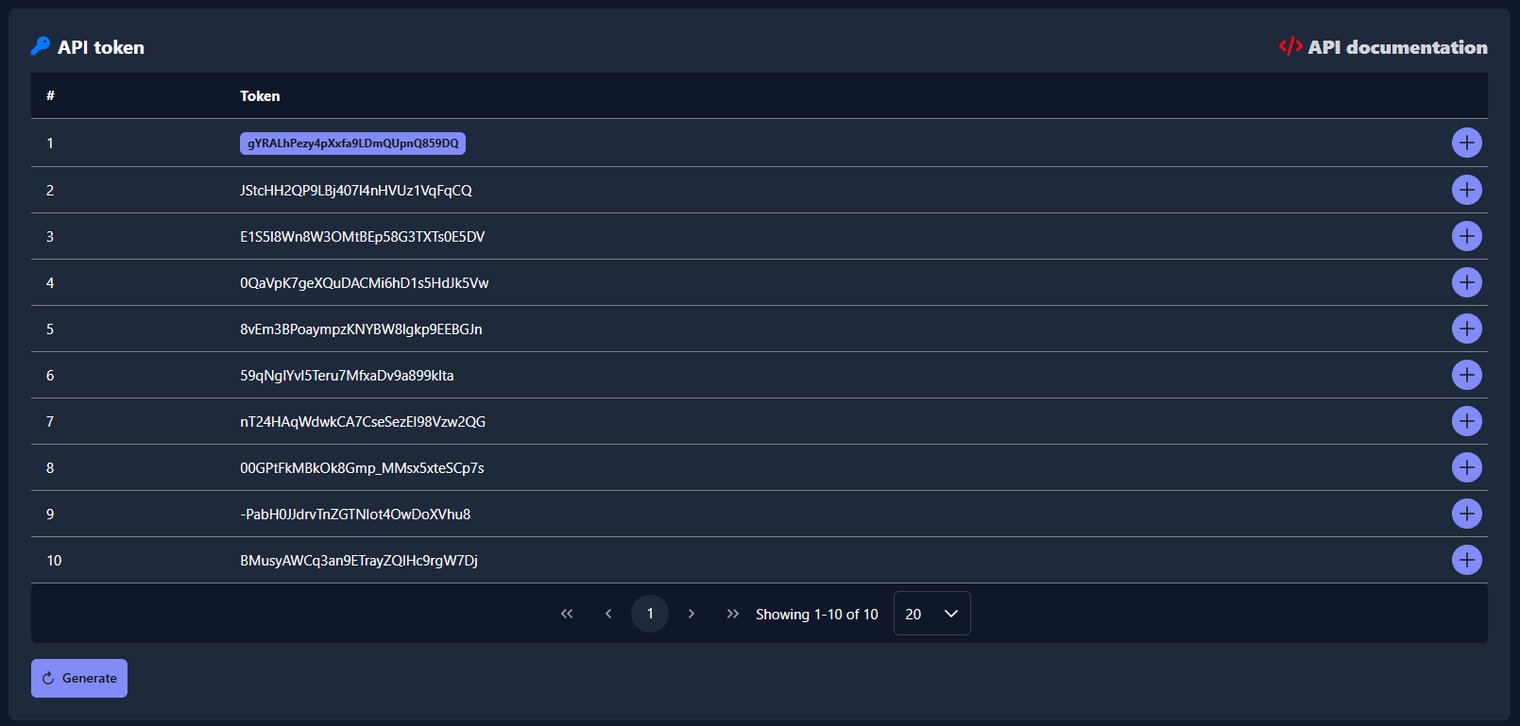
This section shows all your available API tokens. You use these tokens to authenticate API requests.
To generate a new token:
Click the Generate button. The system will automatically create a new token and add it to the list.
To delete a token:
Click the + button on the right side of the token row, then click Delete. A confirmation window will appear — click Delete to confirm.
To view the full API documentation, click the API documentation link in the top right corner of the page.
Example of Using API
This section displays a sample GET request with example parameters — token, phone number, message text, and Sender ID. Use it as a reference when building your API integration.
API IP Whitelist
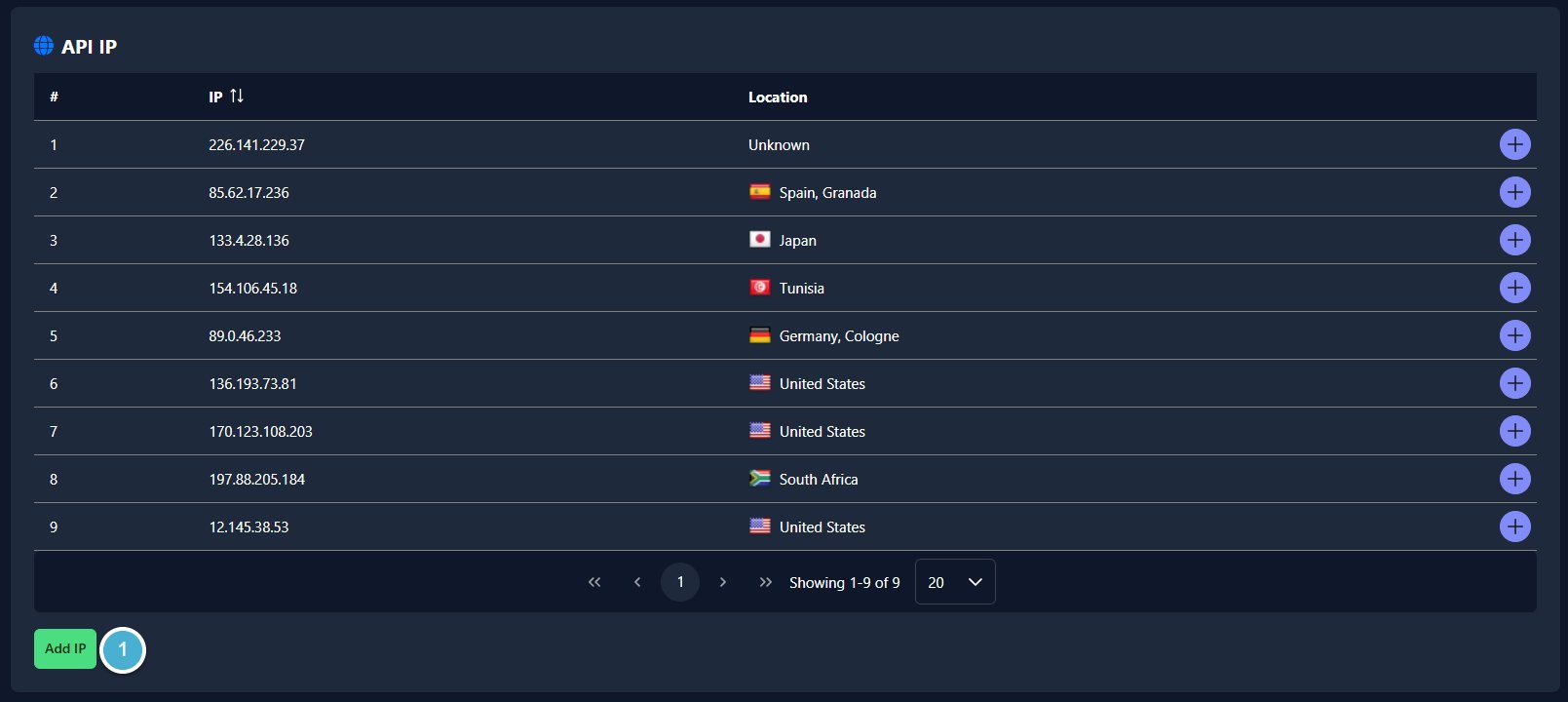
This section shows the list of IP addresses that are allowed to make API requests. Adding IPs to the whitelist restricts API access to only those addresses.
To add a new IP address:
Click the Add IP button:
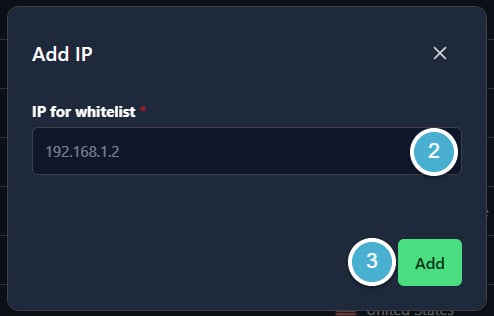
In the window that opens, enter the IP address in the IP for whitelist field.
Click Add IP.
To delete an IP address:
Click the + button on the right side of the row, then click Delete. A confirmation window will appear — click Delete to confirm.
Once your token is generated and webhooks are configured, your API integration is ready to use.
SMS is a simple and familiar communication channel. Most of us remember old mobile phones thatshowed a character counter while typing a message. Today, smartphones often hide this counter,but the technical limits of SMS have not disappeared.For anyone...
Sempico Solutions SMS Integration with ActiveCampaign
ActiveCampaign is a marketing and sales automation platform designed to drive revenue growth for businesses. It empowers users to create personalized marketing campaigns, automate customer follow-up, and optimize sales efficiency.
To start sending SMS marketing via Sempico...
Sempico Solutions SMS Integration with Fast Track
Sempico Solutions can be integrated with Fast Track CRM through Fast Track’s Custom SMS Solution framework.
The integration enables iGaming operators to use Sempico as an SMS delivery layer for CRM activities, lifecycle automation, player engagement campaigns,...
Cookie declaration last updated on 01/01/2025
This website uses cookies
We use cookies to enhance your browsing experience, provide social media features, and analyze our traffic.
You consent to our cookies if you continue to use our website.