
How to use the Templates page
The Templates page is where you create, store, and manage reusable SMS message templates.
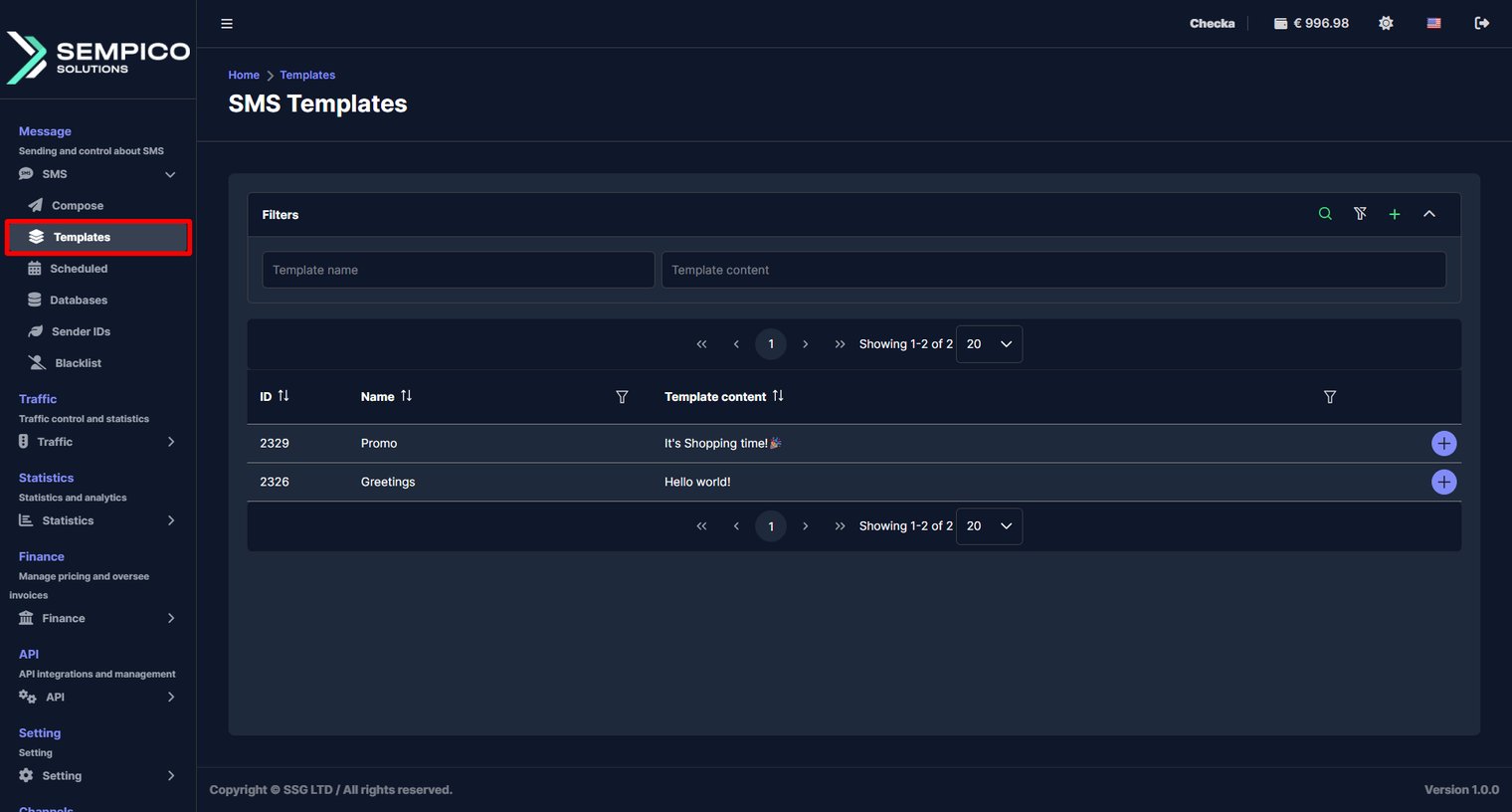
Image options
On this page, you can quickly find templates using filters, review them in the table, and edit or delete existing entries. You can also create a new template and prepare the message text in advance, including variables and emojis if needed.
On this page, you work with two areas:
Filters & Global action — to search for templates by name, content, or to create a new one
Templates table — to view saved templates and open row actions
Filters
The [Filters] block helps you find templates and run global actions:
[Filter fields]
You can use one field or combine several filter fields:
[Template name] — find a database by its name
[Template content] — find a database by its content (word or phrase)
After entering the values, click the [ Search ] button to apply the filters.
[Actions]
The controls in the top-right corner of the [Filters] block allow you to do the following actions:
[ Search ] button — applies the entered filters manually
[ Reset filters ] button — clears all active filters
[ Create template ] button — opens the [Create template] page
[ Arrow ] button — collapses or expands the [Filters] block
If no filters are applied, the system shows the full list of available templates.
How to create a new template
Click the [ Create template ] button in the [Filters] block on the [Templates] page:
And you will be redirected to the [Create template] page:
Use this page to create a reusable SMS template that can be selected later in the [Template] dropdown on the [Compose] page.
[Name*] (required)
Enter a clear name for the template.
[Message*] (required)
Enter the SMS text you want to save as a template.
Use the emoji button next to the [Message] field to insert emojis into the template text.
Adding emojis or special characters will change the message encoding and affect the number of SMS parts.
[Variables]
Use the [Variables] dropdown to insert data from your contact base into the message.
This allows you to personalize the same SMS for different recipients — for example, by inserting:
phone number
first name
last name
date of birth
and other available fields from the selected base
Сlick the [Variables] dropdown and choose the desired options:
When you click the [ Variable ] button, the system inserts a placeholder into the message text. During sending, this placeholder is replaced with the actual value from each contact record.
Variables work correctly only when the selected recipients come from a contact base that contains these fields.
[Message counters]
These indicators help you check whether the message will be sent in the expected format and how many SMS parts it will use.
Pay attention to these values while writing your message:
[Encoding] — shows the current encoding (for example, 7bit)
[SMS Parts] — shows how many SMS parts the text will be split into
[Chars used] — shows how many characters are currently used
[Chars in SMS] — shows the character limit for the current encoding
These values update automatically when you type or edit the message.
Why this matters:
if encoding changes, the character limit per SMS will change
if the text becomes too long, the message will be split into multiple SMS parts
this affects how the final message is delivered and how many SMS are sent in total
When the template name and message are ready, click the [ Save ] button to save a template, or if you want to leave this page without saving, click the [ Cancel ] button to return to the [Templates] page.
Templates list
The table below shows all saved SMS templates that match the selected filters:

Image options
[Actions]
On the right side of each row, click the [ + ] button to expand additional actions for that template.
After expanding the row, you will see two actions:
- Click the [ Delete ] button to delete the template
- Click the [ Edit ] button to edit the template.
How to delete a template
To remove the template, click the [ + ] button on the right side of the row and click the [ Delete ] button:

Image options
After that, the system opens a confirmation window.
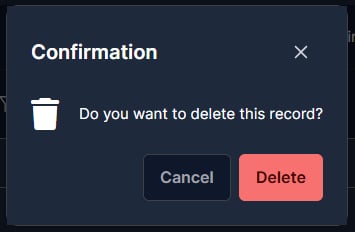
Image options
Click the [ Delete ] button to confirm deletion, or click the [ Cancel ] button to decline deletion.
How to edit a template
To edit the template, click the [ + ] button on the right side of the row and click the [ Edit ] button:

Image options
After that, the system will redirect you to the [Update template] page:
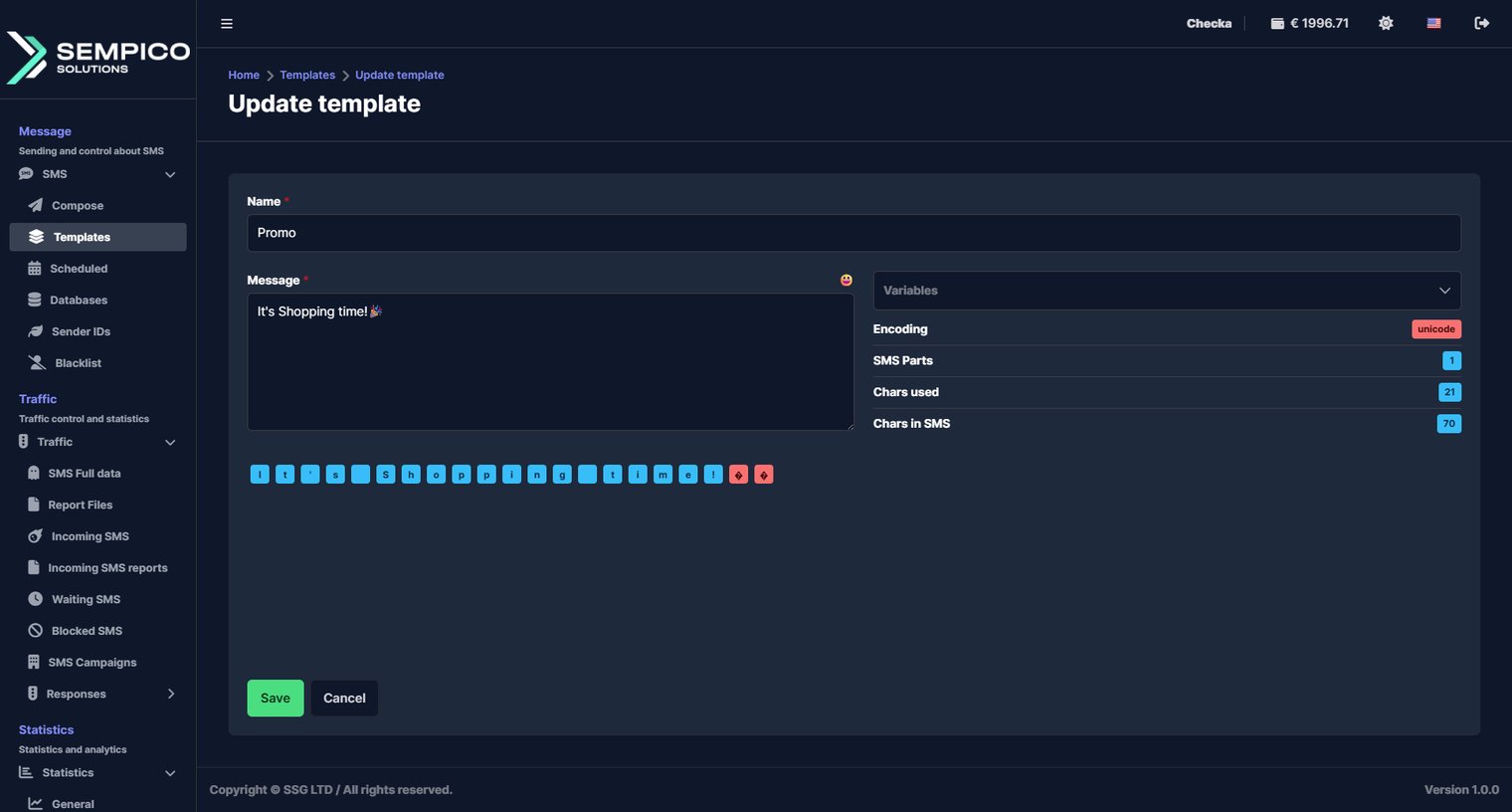
Image options
After making the needed changes, click the [ Save ] button to save them, or click the [ Cancel ] button to return to the [SMS Templates] page without saving changes.
Next steps
- Learn how to manage saved templates in the Templates section.
- Learn how to review campaign history on the campaigns page.
How to use the Templates page
The Templates page is where you create, store, and manage reusable SMS message templates.
Image options
On this page, you can quickly find templates using filters, review them in the table, and edit or delete existing entries. You can also create a new template and prepare the message text in advance, including variables and emojis if needed.